


If your IPTV app has become slow, freezes when you switch channels, shows an old channel list or refuses to load the TV guide, a full cache is one of the most likely causes. Clearing it takes under a minute, does not delete your login, and often makes the app feel new again. These steps show how to clear IPTV cache safely on the most common devices. For more background, see Amazon’s Fire TV help pages.
This guide explains what the cache is, the difference between clearing cache and clearing data, and the exact steps for every popular device.
What is the app cache?
The cache is temporary storage the app uses to work faster: channel logos, posters for movies and series, pieces of the TV guide, and bits of recently played video. Over weeks of use it grows, and on devices with little storage and memory, like the Amazon Firestick, a large cache slows everything down. Sometimes a piece of cached data also gets corrupted, which causes odd problems like an empty guide or channels that will not open.
Clear cache vs clear data: know the difference
- Clear cache: deletes only temporary files. Your login, favourites and settings stay. Always try this first.
- Clear data (or Clear storage): resets the app completely, as if you just installed it. Your login, favourites, parental PIN and settings are erased, and you have to log in again.
Keep your login details handy before clearing data. If you have lost them, message us and we will send them again.
When to clear the cache
- The app is slow to open or to move through menus.
- Channels freeze or buffer on a connection that tests fine. See also IPTV buffering fixes.
- The TV guide is empty or out of date. See how to fix the EPG.
- New channels or movies do not appear.
- The device warns that storage is low.
Amazon Firestick and Fire TV
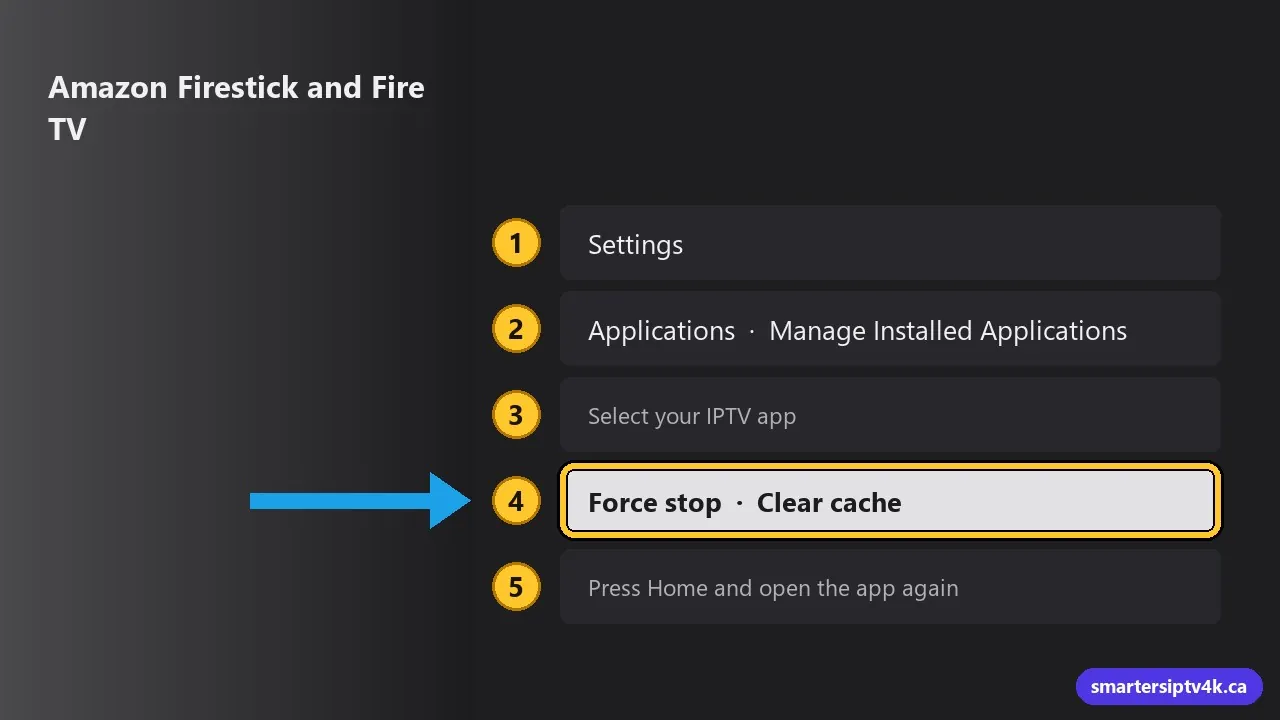
- From the home screen, open Settings (gear icon).
- Go to Applications, then Manage Installed Applications.
- Select your IPTV app (IPTV Smarters, TiviMate or another).
- Choose Force stop, then Clear cache.
- Press Home and open the app again.
While you are in that list, uninstall apps you never use. Firesticks run noticeably better with more free storage. Full setup tips are in the Firestick guide.
Android TV and Google TV

- Open Settings.
- Go to Apps (on some models Apps > See all apps).
- Select your IPTV app.
- Choose Force stop, then Clear cache.
On NVIDIA Shield the path is Settings > Apps > See all apps. See our Android TV guide for more tips.
Android phones and tablets
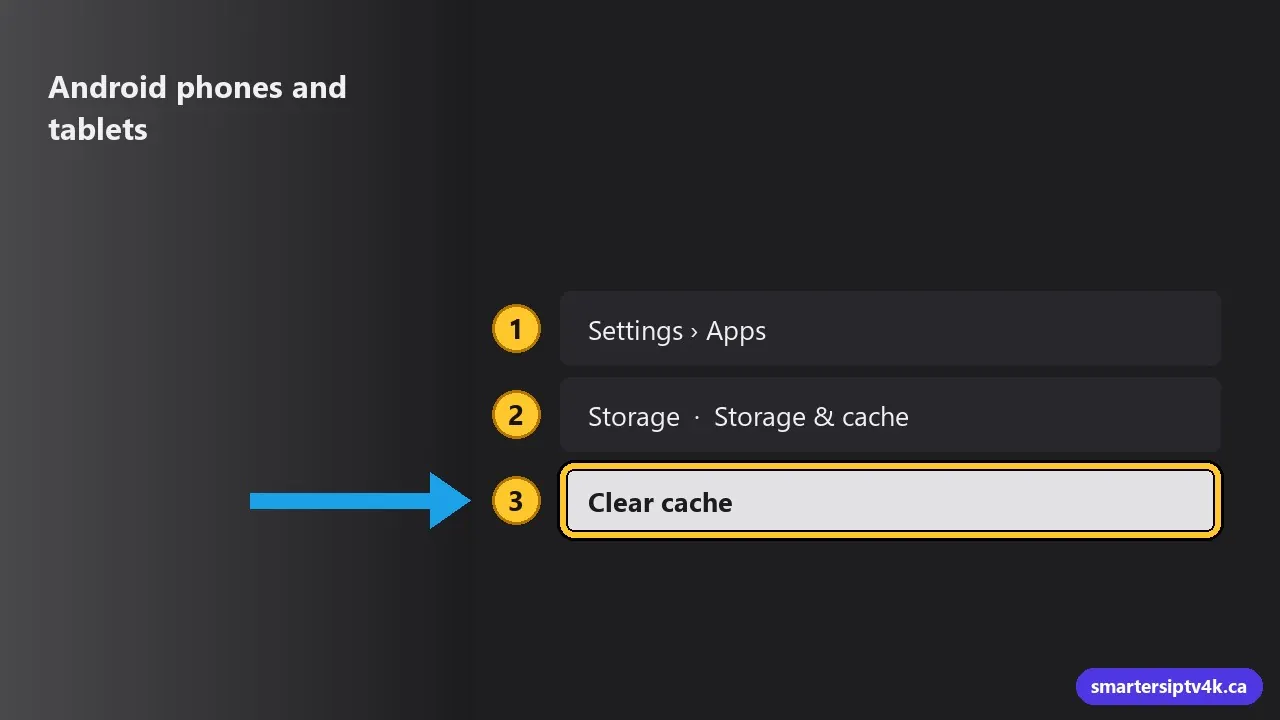
- Open Settings > Apps.
- Select your IPTV app, then Storage (or Storage & cache).
- Tap Clear cache.
Samsung Smart TVs
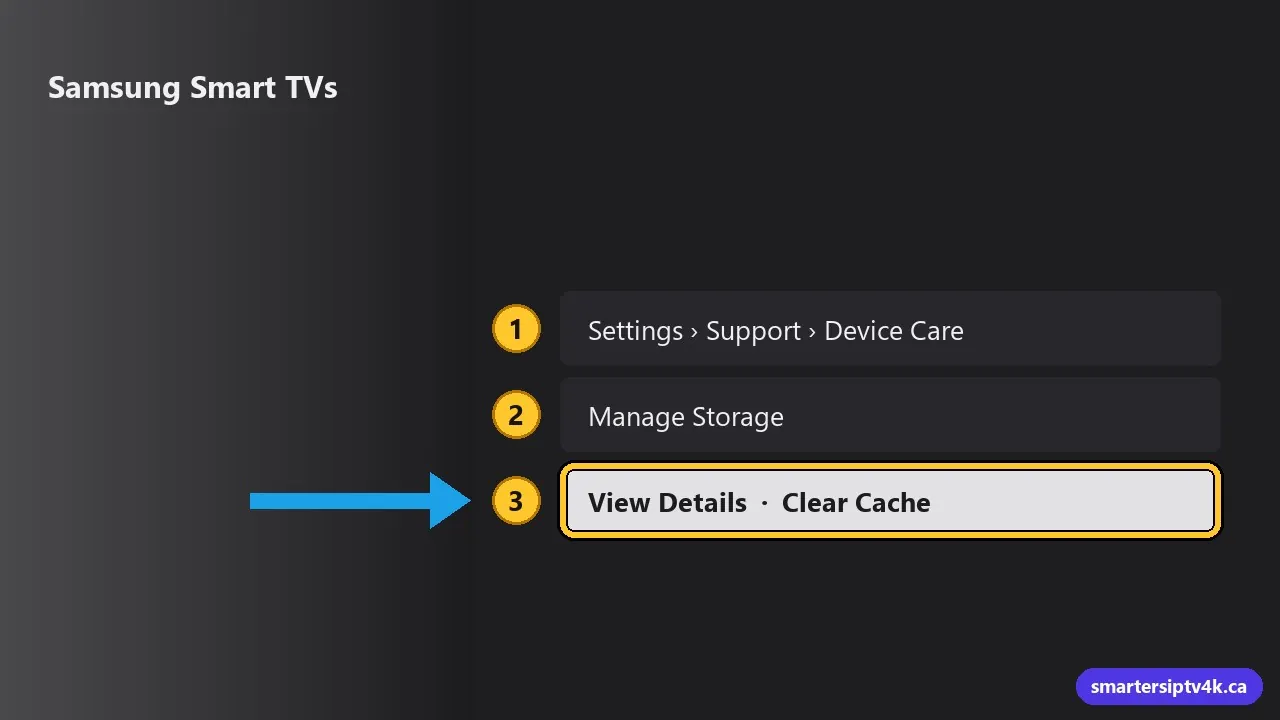
Samsung TVs manage app storage in the Device Care menu. On most recent models:
- Go to Settings > Support > Device Care.
- Select Manage Storage.
- Choose your IPTV app, then View Details, and Clear Cache.
If your model has no such option, turning the TV off at the wall for 30 seconds clears the temporary memory. See the Samsung guide.
LG Smart TVs
webOS does not offer a per-app cache button on most models. Instead:
- Unplug the TV for 30 seconds for a full restart.
- If problems continue, uninstall the IPTV app, restart the TV, and install it again. You will need to log in again.
More in our LG guide.
iPhone, iPad and Apple TV
Apple devices do not have a clear cache button. The equivalent is:
- iPhone and iPad: Settings > General > iPhone Storage, choose the app, then Offload App. This removes the app but keeps its documents and data; reinstall it from the same screen.
- Apple TV: Settings > General > Manage Storage, delete the app, then reinstall it from the App Store and log in again.
Inside the IPTV app
Many players also have their own cleanup options:
- IPTV Smarters: use the refresh icon on the dashboard to reload channels, movies, series and the guide. Some versions have a Clear cache or Refresh option in Settings.
- TiviMate: Settings > Playlists, select the playlist and Update playlist; Settings > EPG > Update EPG for the guide.
How often should you clear it?
There is no need to do it every day. A good routine:
- Clear the cache when you notice slowness or glitches.
- On Firesticks and older boxes, once a month as maintenance.
- Restart the device once a week to clear its memory.
Still not working?
- Clear data and log in again (have your details ready).
- Update the app to the latest version.
- Restart the router and the device. See how to reset your IPTV box for the next level of reset.
- Check whether the service itself has an issue: is IPTV down today.
Clear IPTV Cache: frequently asked questions
Will clearing the cache delete my favourites?
No. Clearing the cache keeps your favourites and login. Clearing data removes them.
Does clearing the cache affect my subscription?
No. Your subscription is on our side. Clearing anything on your device never cancels or changes it.
Why does the cache fill up again?
That is normal: the app rebuilds it as you use it, which is what makes it fast. Clearing it simply removes old and broken pieces.
Need help?
Tell us your device and app, and we will walk you through it for free. New to Smarters IPTV? Start a free trial.