

Android TV and Google TV are the most flexible platforms for IPTV. They run every major player app, including IPTV Smarters Pro and TiviMate. TiviMate and XCIPTV are in the Google Play Store; IPTV Smarters Pro is no longer listed there, so it is installed with Downloader. This guide covers Google TV streamers, TVs with Google TV built in (Sony, TCL, Hisense and others), Android TV boxes and the NVIDIA Shield. This guide shows how to set up IPTV on Android TV, Google TV and NVIDIA Shield. For more background, see Google TV Help.
Quick answer
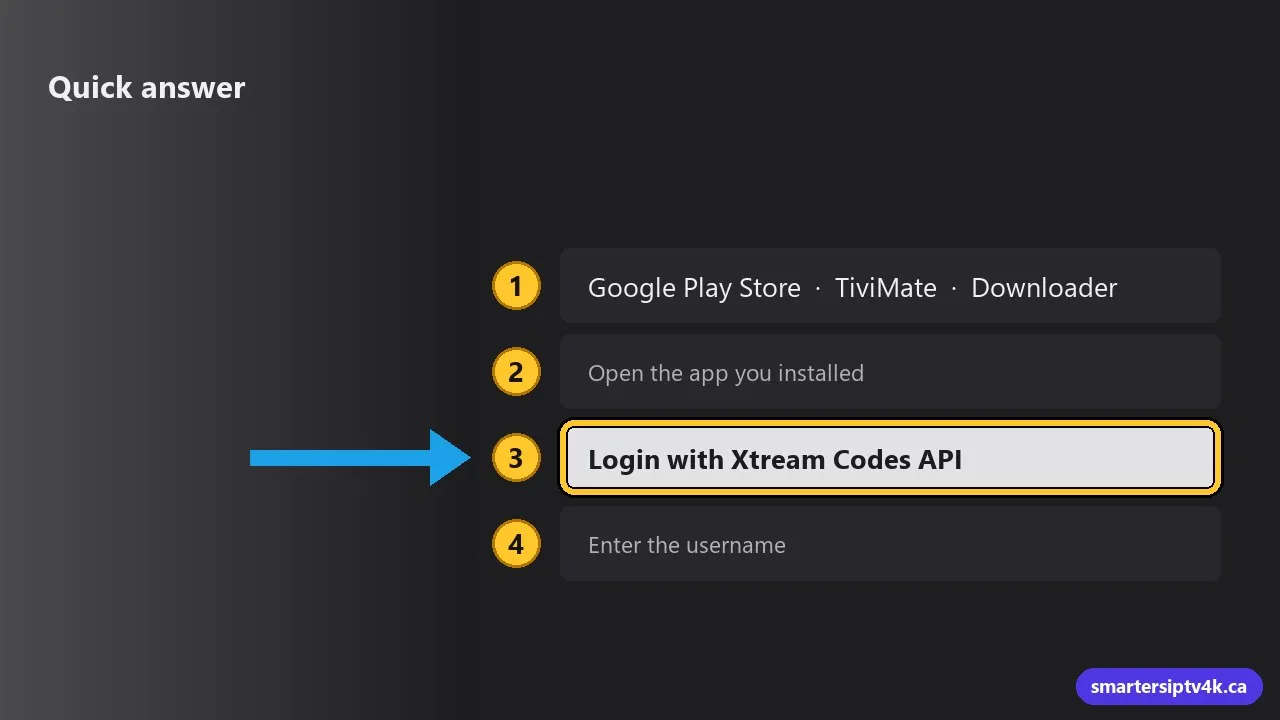
- Open the Google Play Store and install TiviMate, or install Downloader to add IPTV Smarters Pro (no longer in the Play Store) with the link we send you.
- Open the app you installed.
- Open the app and choose Login with Xtream Codes API.
- Enter the username, password and server URL we sent you.
Android TV vs Google TV: what is the difference?
Google TV is the newer home screen that runs on top of Android TV. For IPTV, they work the same way: the same apps, the same logins. The only differences are menu names in the settings, which we point out below. You will find them on:
- Google TV Streamer and Chromecast with Google TV
- Smart TVs from Sony, TCL, Hisense, Philips and others with Google TV or Android TV built in
- NVIDIA Shield TV and Shield TV Pro, the fastest Android TV devices available
- Android TV boxes such as the Xiaomi Mi Box and Formuler models (see our Formuler guide)
What you need
- An Android TV or Google TV device signed in with a Google account and connected to the internet.
- Your username, password and server URL. We send them by email or WhatsApp when your free trial or subscription starts.
- At least 10 Mbps for HD and 25 Mbps for 4K. More in internet speed for IPTV.
Step 1: Install IPTV Smarters Pro with Downloader

As of September 2026, IPTV Smarters Pro is no longer listed in the Google Play Store, and apps with similar names there come from other developers. Install it with the free Downloader app instead (or use TiviMate, which is in the Play Store):
- Install Downloader by AFTVnews from the Play Store.
- Allow it to install apps. On Google TV: Settings > Apps > Security & Restrictions > Unknown sources, then turn on Downloader. On Android TV: Settings > Device Preferences > Security & restrictions > Unknown sources.
- Open Downloader, enter the official download link we send with your login, download and install.
Only use official websites or links we send you. Unofficial copies can be outdated or contain adware.
Step 2: Log in
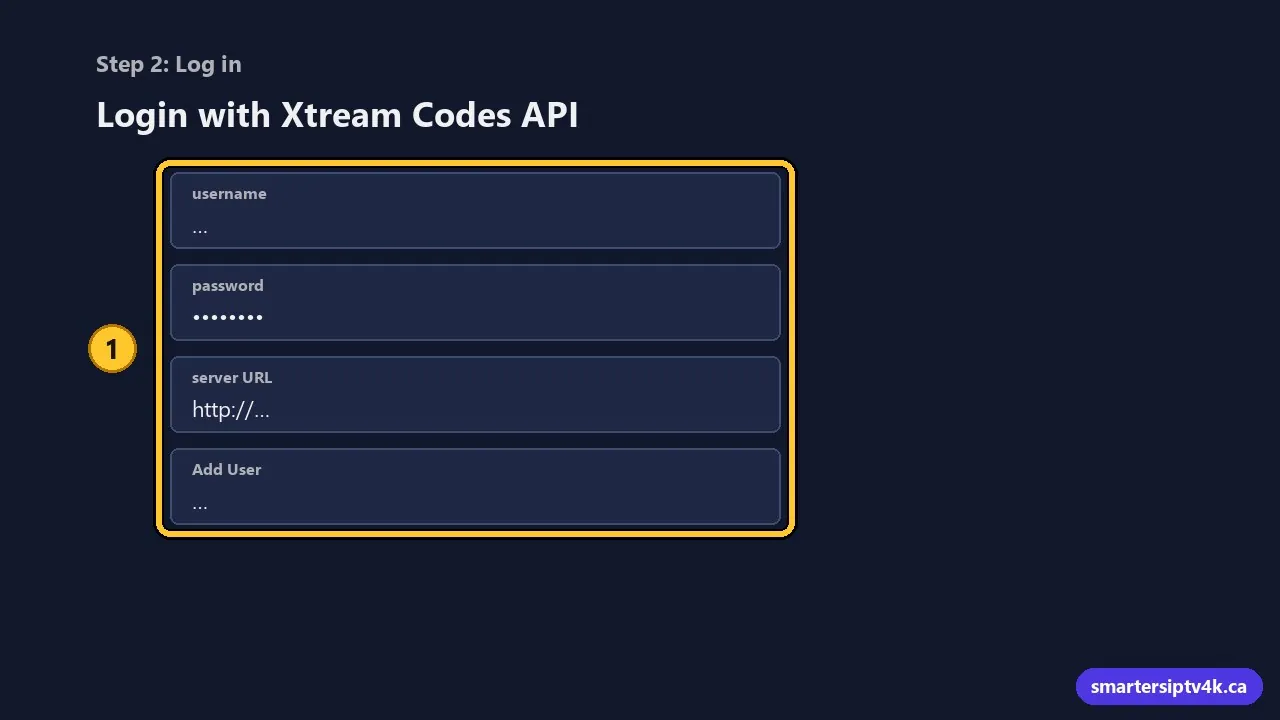
- Open IPTV Smarters Pro and accept the terms.
- Choose Login with Xtream Codes API.
- Enter a profile name, then your username, password and server URL exactly as sent. They are case sensitive, and the URL needs
http://. - Select Add User. Your live TV, movies and series load in under a minute.
Our IPTV Smarters Pro login guide explains every screen and setting in detail.
Prefer a TV-style guide? Use TiviMate
TiviMate is built for Android TV. It looks and feels like a cable box, with a full-screen program grid, favourites and recording. It is available in the Play Store, and the free version works with your login. Follow our TiviMate setup guide.
Tips for NVIDIA Shield owners
- AI upscaling: the Shield TV Pro can upscale HD channels to look sharper on a 4K TV. Turn it on in Settings > Device Preferences > Display & Sound > AI-Enhanced Upscaling.
- Match frame rate: turn on Match content frame rate in the display settings. Sports and movies look smoother.
- Use Ethernet: every Shield has a gigabit port. A wired connection removes almost all buffering.
Tips for Google TV streamers and Chromecast
- These devices have limited storage. Uninstall apps you do not use and clear the IPTV app’s cache now and then (Settings > Apps > IPTV Smarters > Clear cache).
- Turn off Data saver in the Google TV network settings, or video quality can drop.
- If Wi-Fi is weak, a USB-C hub with Ethernet makes a big difference on the Chromecast.
Common problems and fixes
“App not compatible with your device”
The Play Store hides some apps on some TVs. Use the Downloader method above or choose another player.
Login fails
Retype the details carefully, with no space at the end. Check that your trial has not expired. If you recently upgraded, use the new login we sent.
Buffering on live channels
Restart the router and the device, use 5 GHz Wi-Fi or Ethernet, and check the app is up to date. The full checklist is in IPTV buffering fixes.
The remote does not change channels
In IPTV Smarters, open a channel in full screen first. Then the up and down buttons switch channels. In TiviMate, channel buttons work everywhere.
Organize your channels
A full IPTV lineup has thousands of channels. Ten minutes of setup makes daily use much faster:
- Favourites: in IPTV Smarters, long-press the OK button on a channel and choose Add to favourites. In TiviMate, long-press and choose Add to Favourites, then move the Favourites group to the top.
- Hide groups you never watch: TiviMate lets you hide whole categories (for example other countries) in Settings > Playlists > Manage groups. The channel list becomes much shorter.
- Canadian channels first: open the Canada, Quebec and Sports groups and add the channels you use every day to Favourites.
- Catch-up: channels with a clock icon let you watch programs from the past few days from the guide. Great for games that ended before you got home.
If several people share the device, use separate profiles in the app so everyone keeps their own favourites and watch history, and set a PIN on adult categories with the app’s parental controls.
More players with their own guide: IBO Player Pro, Televizo, IPTV Extreme.
IPTV on Android TV: frequently asked questions
Is Android TV better than Firestick for IPTV?
Both work very well. Android TV devices give you the Play Store and wider app choice; the Firestick is cheaper and very easy. The NVIDIA Shield is the fastest of all. For a comparison, read our guide to the best IPTV box in Canada.
Can I record shows?
Yes, with TiviMate Premium and a USB drive or enough internal storage. See recording live TV with IPTV.
Can I use a VPN on Android TV?
Yes, most VPN services have an Android TV app. It is not required. See do you need a VPN for IPTV.
Need help?
Tell us your device model and we will guide you through the setup for free. New to Smarters IPTV? Try it free first or see plans and prices.