

TiviMate is the IPTV player that feels most like a real cable box. It shows a full-screen program guide, switches channels instantly, and lets you organize thousands of channels into a short, tidy list. Many long-time IPTV users in Canada consider it the best player for the big screen. Follow these steps to set up IPTV on TiviMate on Firestick or Android TV. For more background, see TiviMate on Google Play.
This guide covers where TiviMate runs, how to add your subscription with either login type, and the settings that make it faster and easier to use.
Quick answer
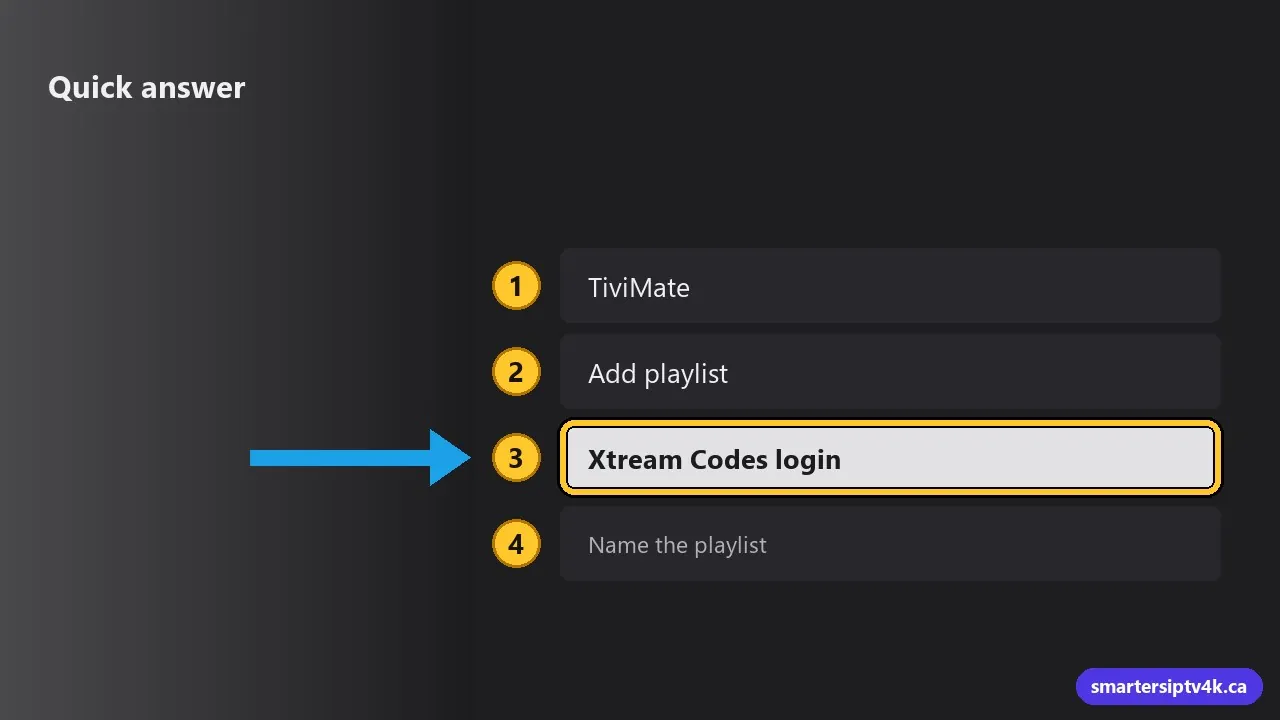
- Install TiviMate from the Google Play Store (Android TV and Google TV) or with Downloader (Firestick).
- Open it and choose Add playlist.
- Choose Xtream Codes login and enter the server URL, username and password we sent you.
- Name the playlist, confirm, and wait for channels and the guide to load.
Which devices run TiviMate?
TiviMate is made for Android-based TV devices:
- Google TV and Android TV: Chromecast with Google TV, Google TV Streamer, NVIDIA Shield, and TVs from Sony, TCL and Hisense with Google TV.
- Amazon Firestick and Fire TV models running Fire OS.
- Android TV boxes, including many Formuler and Xiaomi models.
It does not run on Samsung or LG TVs, Apple TV, iPhone or Windows. On those devices, use the players in our Samsung, LG and Apple TV guides.
Free vs Premium
TiviMate is free to install and play your channels. TiviMate Premium is a paid upgrade sold by the app’s developer (not by us) that adds:
- Recording and scheduled recording (with enough storage).
- Catch-up playback from the guide on supported channels.
- Favourites management, multiple playlists and a customizable guide.
- Picture-in-picture and multi-view on some devices.
Try the free version first. If you like it, Premium is worth it for sports fans who record games. Prices, activation steps and a full comparison are in our TiviMate Premium guide.
Step 1: Install TiviMate
On Android TV and Google TV
Open the Google Play Store, search for TiviMate IPTV Player and select Install.
On Firestick
TiviMate is not in the Amazon Appstore. Install the Downloader app, turn on Install unknown apps for it, and download TiviMate from its official source. Our Firestick guide shows these first steps in detail with screenshots of each menu.
Step 2: Add your playlist
When you open TiviMate for the first time, it asks you to add a playlist. Choose the login type that matches what we sent you.
Option A: Xtream Codes login (recommended)
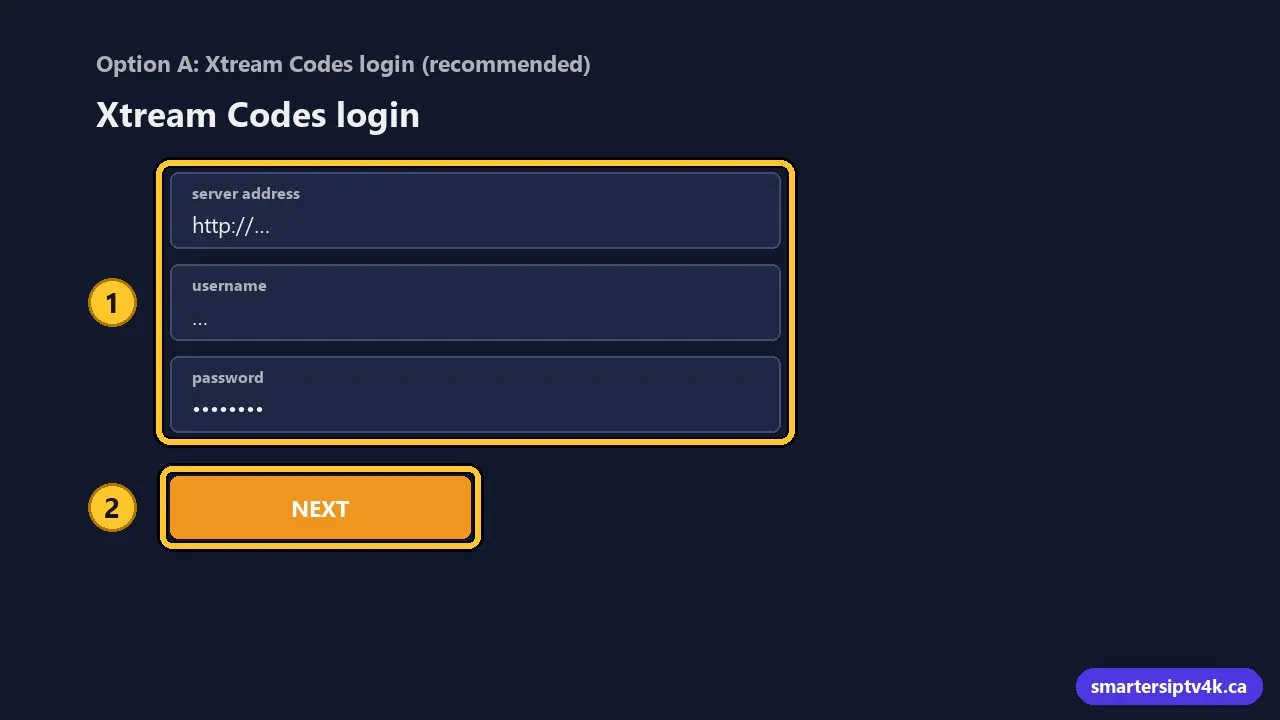
- Select Add playlist, then Xtream Codes login.
- Enter the server address exactly as sent, including
http://and the port if there is one. - Enter your username and password. They are case sensitive.
- Select Next. TiviMate checks the login and shows how many channels, movies and series it found.
- Name the playlist (for example “Smarters IPTV”) and select Done.
The Xtream Codes login loads the TV guide automatically, so there is nothing else to set up.
Option B: M3U playlist link
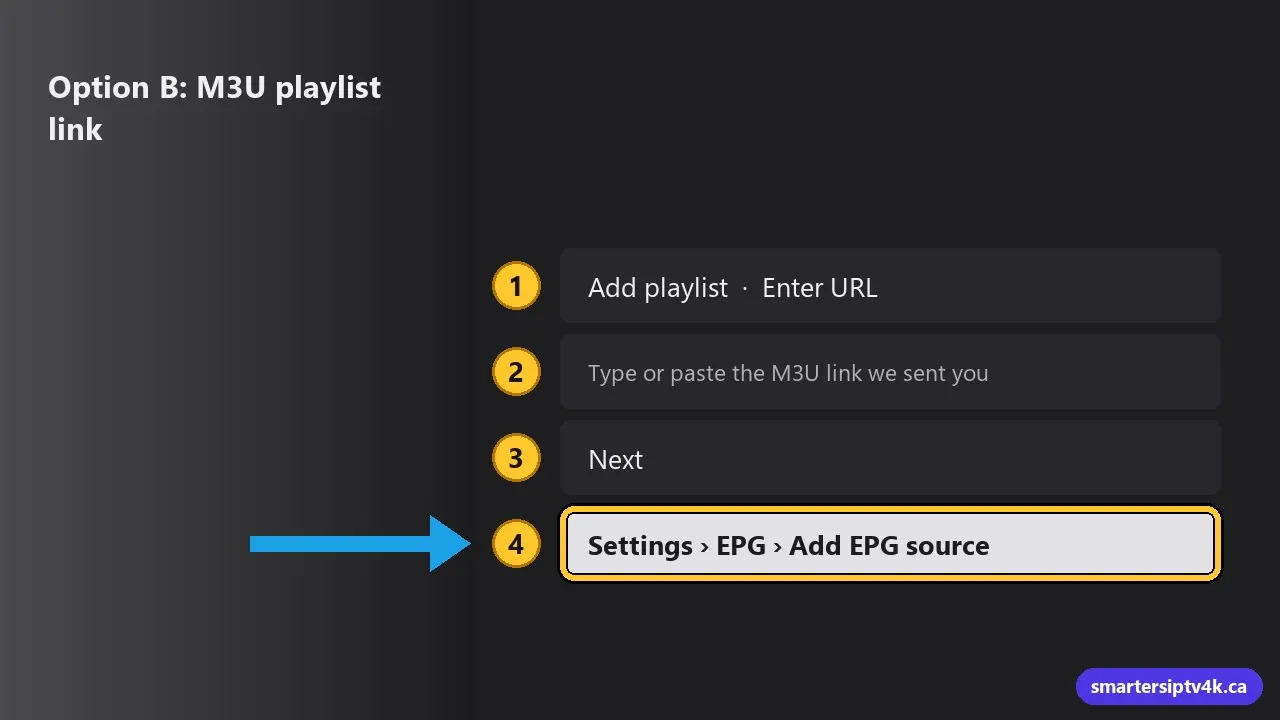
- Select Add playlist, then Enter URL.
- Type or paste the M3U link we sent you.
- Select Next, name the playlist, and finish.
- If the guide is empty, go to Settings > EPG > Add EPG source and enter the EPG link we provide.
Not sure what M3U means? Read what M3U is in IPTV.
Step 3: Tidy up your channel list
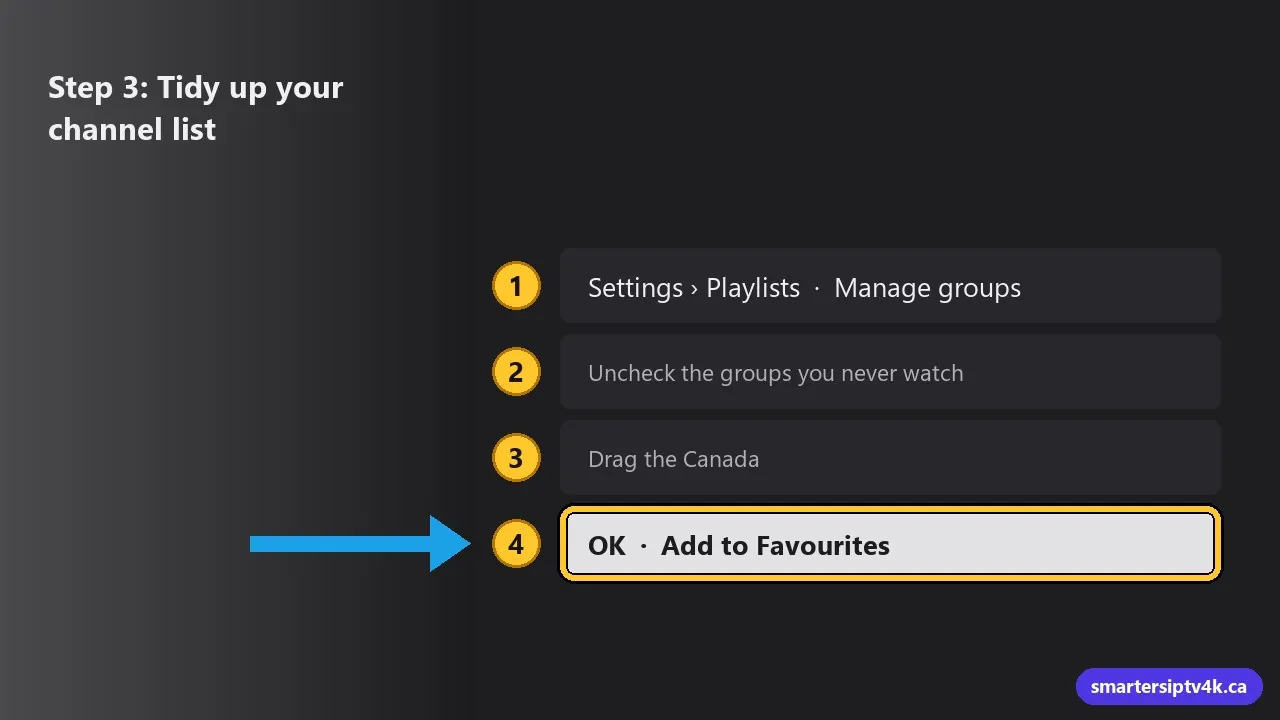
This is where TiviMate shines. A few minutes of setup turns thousands of channels into a list you actually use:
- Open Settings > Playlists, select your playlist, then Manage groups.
- Uncheck the groups you never watch, such as other countries. They disappear from the guide.
- Drag the Canada, Quebec and Sports groups to the top.
- In the guide, long-press OK on a channel and choose Add to Favourites. Build a favourites group of your daily channels. To tidy it later, see clear favourites on IPTV.
Step 4: Adjust the guide and playback
- Guide update: in Settings > EPG, set the update interval to every 12 or 24 hours so the guide is always current.
- Time zone: if program times are off by a few hours, set EPG time shift in the same menu. This is common for viewers in Newfoundland, the Prairies or BC.
- Buffer size: in Settings > Playback, set the buffer to Medium or Large if streams stutter on Wi-Fi.
- Channel switching: turn on Channel up/down with remote and set the order to match the guide.
Recording live TV
With Premium, highlight a program in the guide and press OK, then Record. To record on a Firestick, add a USB drive with an OTG cable or use the internal storage for short recordings. Recording uses one of your plan’s screens while it runs. More tips in how to record live TV with IPTV.
Handy TiviMate features
- Catch-up: on channels with an archive, move back in the guide and select a past program to watch it (Premium).
- Multi-view: on powerful devices like the NVIDIA Shield, watch several channels at once, perfect for NHL nights with games on at the same time (Premium).
- Reminders: long-press a future program in the guide and set a reminder so you never miss kick-off.
- Backup: in Settings > General > Backup data, save your favourites and settings to a file, so you can restore them on a new device in seconds.
- Auto-start: set TiviMate to open when the device turns on, for a true cable-box feel.
Common problems and fixes
“Playlist is empty” or login error
Check the server address first: a missing http:// or port is the most common mistake. Then retype the username and password. If your trial ended, use the new login from your subscription.
Guide shows “No information”
Go to Settings > EPG and select Update EPG. With M3U logins, make sure the EPG source is added. See fixing an empty EPG.
Channels freeze
Increase the buffer size, use Ethernet or 5 GHz Wi-Fi, and restart the device. The full list is in IPTV buffering fixes.
TiviMate: frequently asked questions
Is TiviMate better than IPTV Smarters?
For a TV-style guide and fast channel surfing, many people prefer TiviMate. IPTV Smarters is easier for beginners and runs on more devices. Both work with the same login, so you can try both. See the IPTV Smarters Pro guide.
Can I use TiviMate on two devices?
Yes, within the number of screens in your plan. Install it on each device and add the same playlist.
Does TiviMate include channels?
No. TiviMate is only a player. Your channels come from your subscription.
Need help?
Send us a photo of the TiviMate screen where you are stuck and we will guide you for free. Do not have a subscription yet? Start a free trial or see our plans.