

Want to keep the big game, a series finale or the evening news for later? With IPTV you have two options: catch-up, which lets you watch programs that already aired without recording anything, and recording, which saves a copy on your device. This guide explains when to use each and how to set up recording in the apps that support it. Here are three ways to record live TV with IPTV, and when catch-up is simpler. For more background, see TiviMate on Google Play.
Catch-up vs recording
| Catch-up | Recording | |
|---|---|---|
| Setup needed | None | App support and storage |
| Available on | Channels with an archive | Any channel you can play |
| How long it lasts | A few days, depending on the channel | Until you delete it |
| Uses a screen while running | Only while watching | Yes, during the recording |
| Best for | Games and shows you missed this week | Programs you want to keep |
For most people, catch-up covers the need. Recording is for keeping things longer or for channels without an archive.
Using catch-up
Channels with catch-up show a clock or rewind icon in most apps.
- IPTV Smarters: open Catch Up on the dashboard, pick the channel, then the day and the program.
- TiviMate (Premium): in the guide, move back in time and select a past program.
- XCIPTV: open Catch Up, choose a channel and date.
Catch-up depends on the TV guide, so make sure your EPG is loaded: EPG guide.
Recording with TiviMate
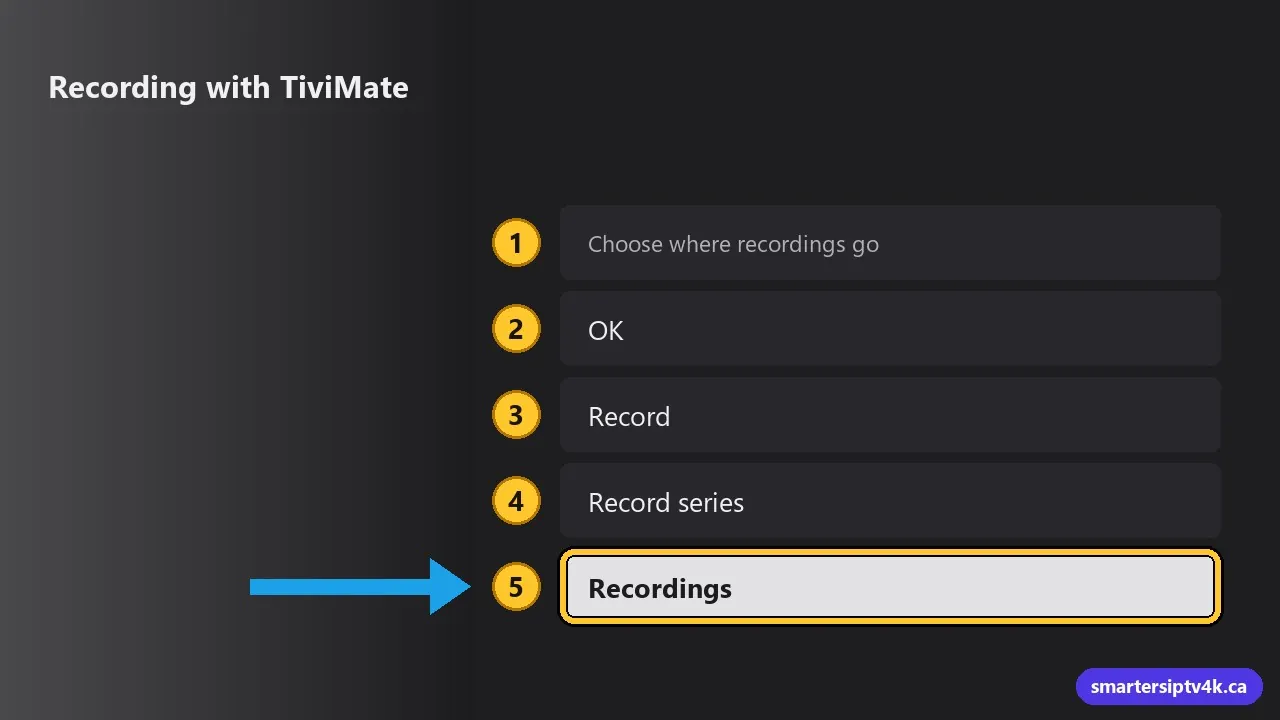
TiviMate Premium is the best option for recording on Android TV and Firestick.
- Choose where recordings go: Settings > Recording > Recordings folder. Use a USB drive or internal storage with enough space.
- In the guide, select a program that is on now or later and press OK.
- Choose Record. A red dot appears on the program.
- For a series, choose Record series to record every episode in the guide.
- Find your recordings in Recordings on the left menu.
Full app guide: TiviMate setup.
Recording with IPTV Smarters
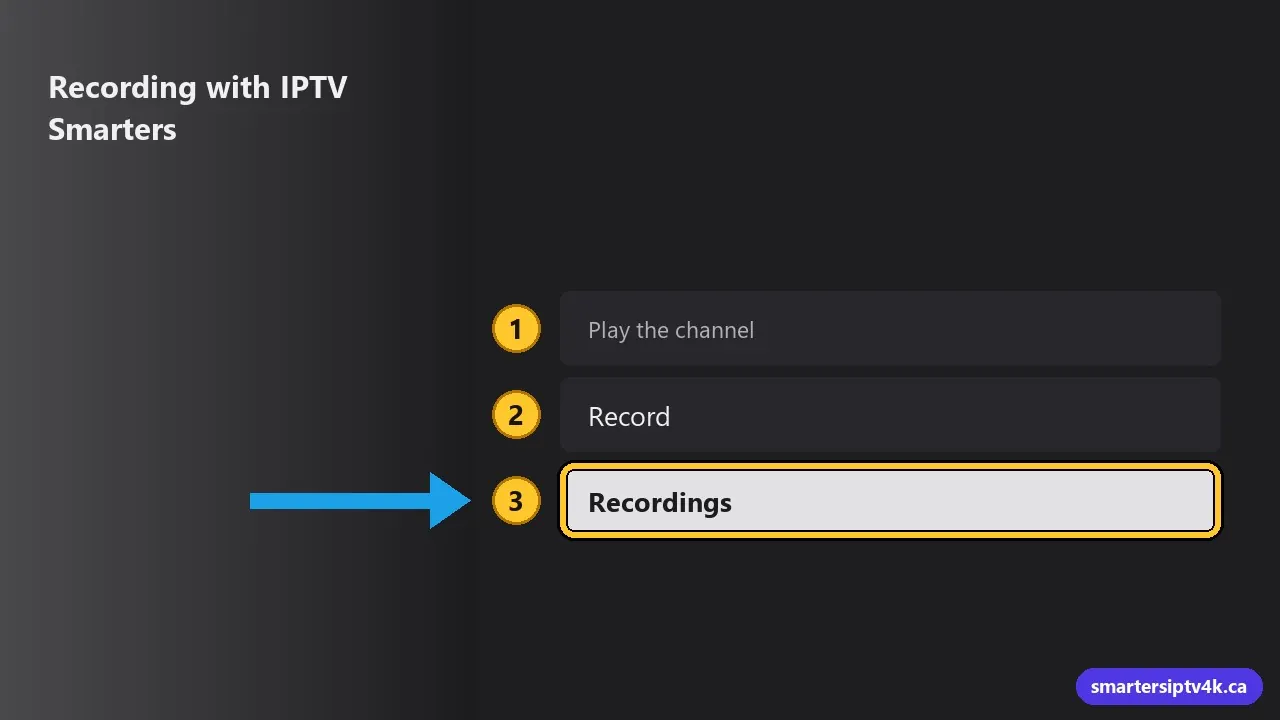
Some versions of IPTV Smarters include a Record button while watching live TV, and a Recordings section on the dashboard. If your version has it:
- Play the channel.
- Open the player options and choose Record, then set the duration.
- Find the file in Recordings.
Recording features vary by device and app version. On devices without it, use catch-up or TiviMate.
Storage: how much space do you need?
- SD: about 1 GB per hour.
- HD: about 2 to 3 GB per hour.
- 4K: 7 GB per hour or more.
A Firestick has little internal storage, so a USB drive with an OTG adapter is the practical option. Android TV boxes and NVIDIA Shield have USB ports. Format the drive as the device asks when you connect it.
Screens and recording
A recording is a stream, so it uses one of your plan’s screens while it runs. If your plan has one screen, you cannot watch another channel while recording. For recording and watching at the same time, choose at least two screens. See multiple devices.
Other ways to record
- Computer: VLC can save a stream to a file with Media > Convert / Save, using the channel’s stream link. See IPTV on Windows.
- Kodi: the PVR IPTV Simple Client does not record by itself. See IPTV on Kodi.
Common problems and fixes
Recording fails or stops
Check free space, the recording folder, and that another device is not using your last screen. A weak connection can also interrupt recordings; see buffering fixes.
Recording starts late or ends early
Guide times can be slightly off. In TiviMate, add a few minutes of padding before and after in the recording settings.
Catch-up program not playing
Not every channel keeps an archive, and archives last a limited number of days. Try a program from a more recent day.
Record Live TV With IPTV: frequently asked questions
Can I record on Samsung or LG TVs?
Most Smart TV IPTV apps do not support recording. Use catch-up, or a streaming stick with TiviMate.
Can I record two channels at once?
Yes, if your app supports it and your plan has enough screens.
Are recordings kept after my plan ends?
The files stay on your storage, but you may need an active subscription for the app to play them. Personal recordings are for your own viewing.
Need help?
Tell us your device and app, and we will help you set up recording or catch-up. New here? Start a free trial.