

To get IPTV on a Firestick, install the free Downloader app, allow apps from unknown sources, install an IPTV player such as IPTV Smarters Pro, then log in with your subscription details. It takes about 5 minutes.
The Amazon Firestick is the most popular way to watch IPTV in Canada. It costs less than a month of cable, plugs straight into any TV with an HDMI port, and runs the IPTV Smarters Pro app smoothly. This guide takes you from a Firestick still in its box to live TV on screen, with the fixes for the problems people run into most. This guide shows how to install IPTV Smarters on Firestick in about ten minutes. For more background, see Amazon’s Fire TV help pages.
The whole setup takes about 10 minutes the first time. You only do it once: after that, you open the app and watch.
Quick answer
- Install the free Downloader app from the Amazon Appstore.
- Turn on Install unknown apps for Downloader in Developer Options.
- Use Downloader to download and install IPTV Smarters Pro.
- Open the app, choose Login with Xtream Codes API and enter your username, password and server URL.
The detailed steps, with the exact menu names, are below.
Which Firestick works best for IPTV?
Almost every Fire TV device sold in Canada in recent years runs IPTV Smarters. The main differences are picture quality and speed:
- Fire TV Stick (HD): fine for HD channels on a smaller TV. It can feel slow with large channel lists.
- Fire TV Stick 4K and 4K Max: the best choice for most homes. They handle 4K channels, load the guide faster, and the 4K Max supports Wi-Fi 6 for a steadier connection.
- Fire TV Cube: the fastest option, with an Ethernet port built in. Worth it if you watch a lot of live sports.
One important exception: some of the newest Fire TV models run Amazon’s own system (Vega OS) instead of Android-based Fire OS, and they do not allow apps from outside the Appstore. If your Firestick has no Developer Options menu at all, even after the steps in Step 2, check the model in Settings > My Fire TV > About and message us. We will tell you which player to use.
What you need before you start
- A Firestick, Fire TV Stick 4K or Fire TV Cube, set up and connected to Wi-Fi.
- Your IPTV login: username, password and server URL. We send these by email or WhatsApp as soon as your free trial or subscription is active.
- An internet speed of at least 10 Mbps for HD, or 25 Mbps for 4K. Not sure? Read what internet speed you need for IPTV.
Step 1: Install the Downloader app
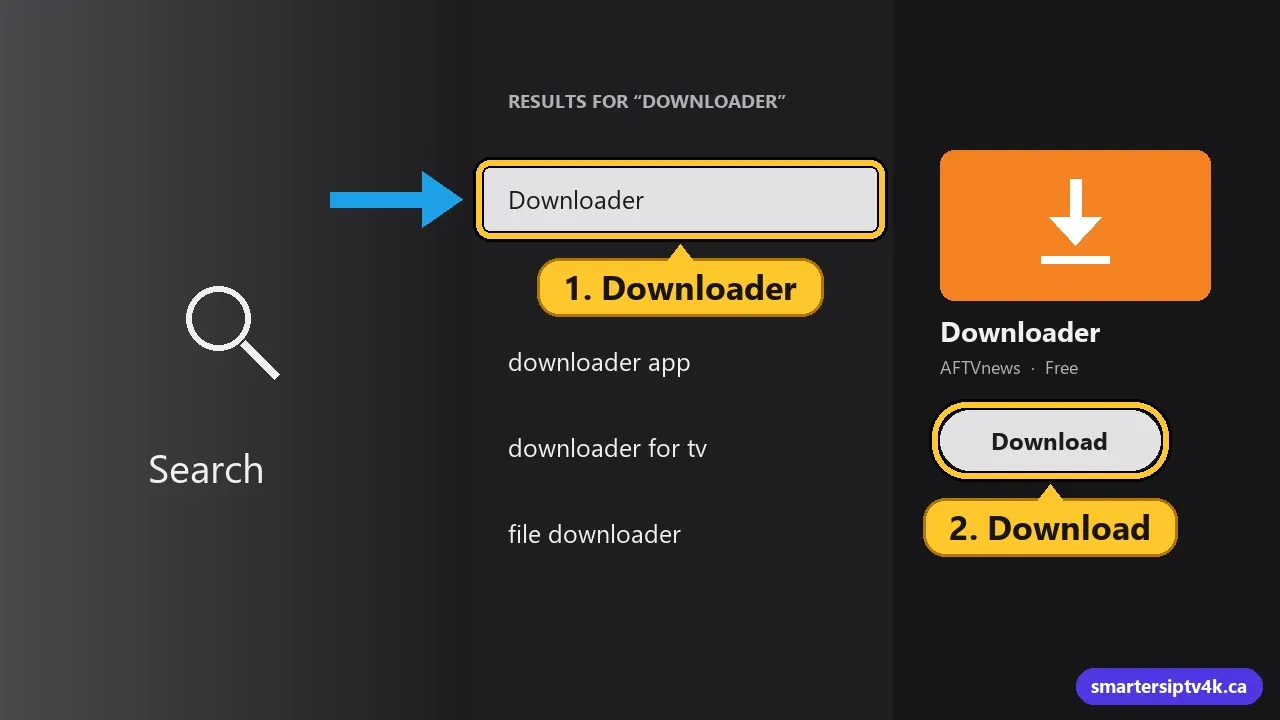
IPTV Smarters is not listed in the Amazon Appstore, so you install it with a small free tool called Downloader.
- On the Firestick home screen, go to Find, then Search.
- Type Downloader and select the app with the orange icon, made by AFTVnews.
- Choose Get or Download and wait for it to install. Do not open it yet.
Step 2: Allow apps from unknown sources
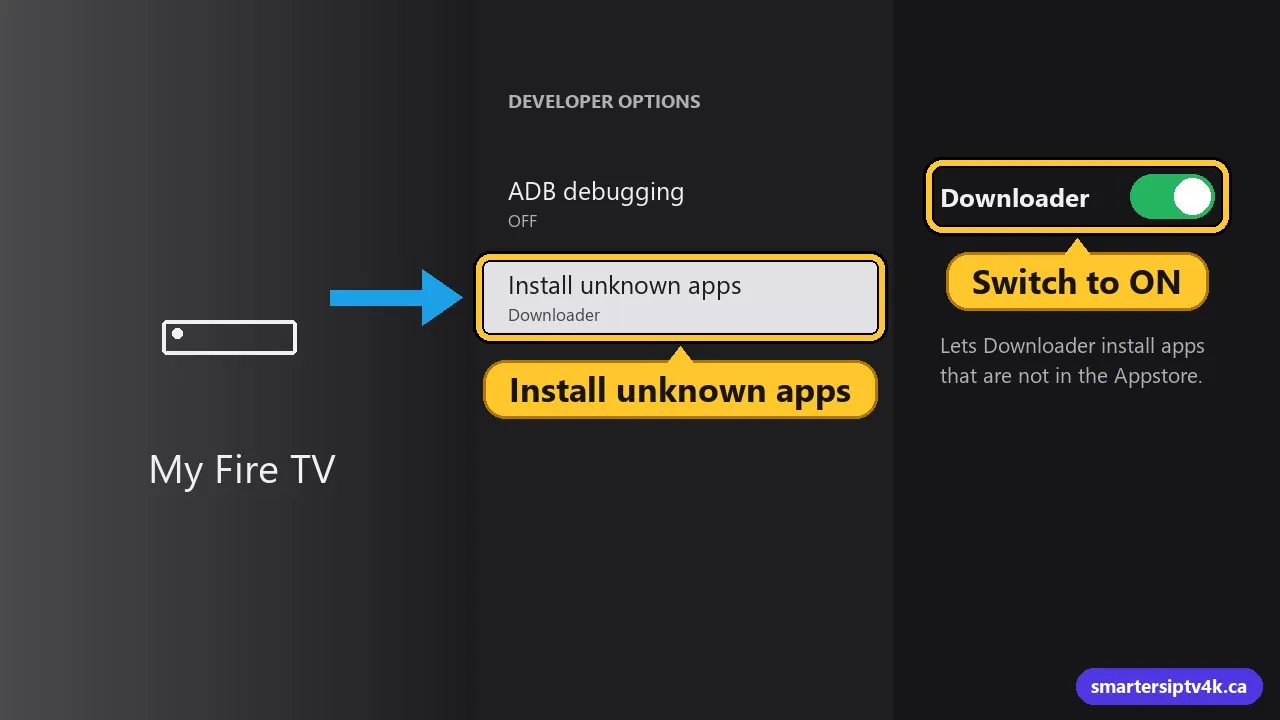
By default, the Firestick only installs apps from the Appstore. You need to give Downloader permission once:
- Go to Settings (the gear icon on the right of the home screen).
- Open My Fire TV, then Developer Options.
- Select Install unknown apps and switch Downloader to On.
No Developer Options? Amazon hides this menu on newer software. Go to Settings > My Fire TV > About, highlight your device name (for example “Fire TV Stick 4K”) and press the select button on your remote 7 times. A message says you are now a developer. Go back and Developer Options will be there.
On older Firesticks the setting is called Apps from Unknown Sources instead. Turn it on; the rest of the guide is the same.
Step 3: Download and install IPTV Smarters Pro
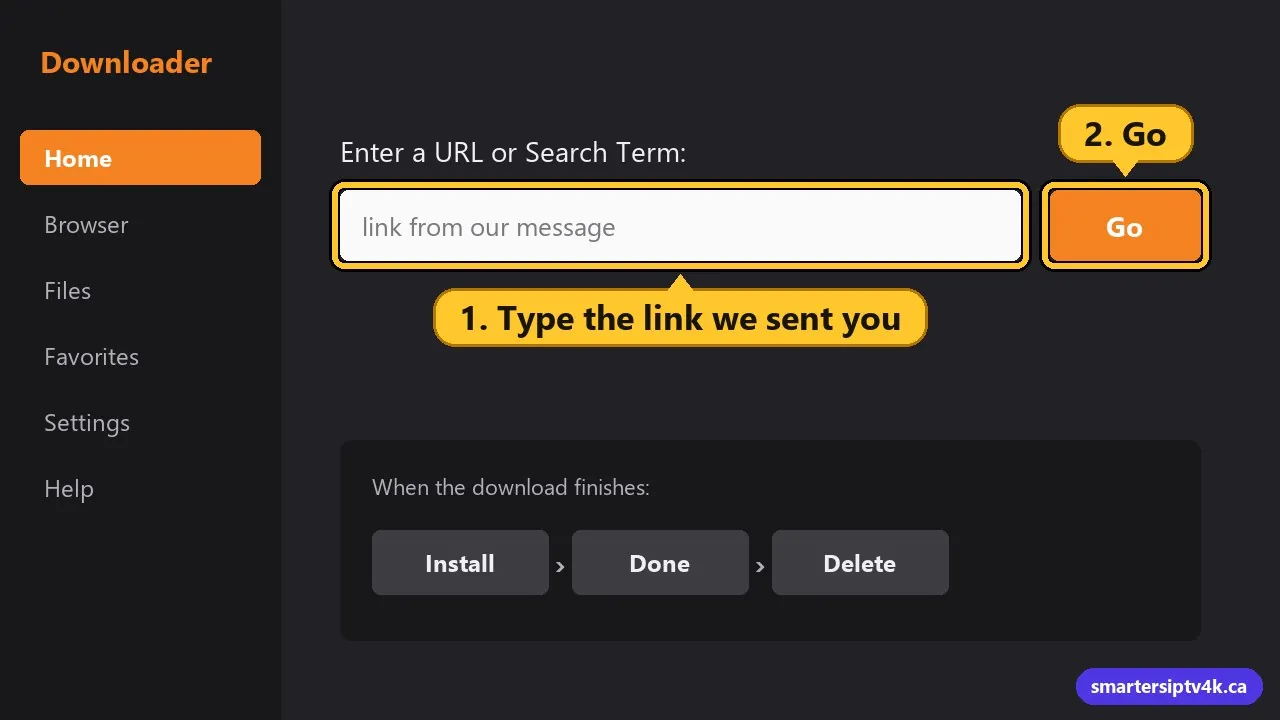
- Open Downloader and allow it to access your files if asked.
- In the address box on the Home tab, type the official IPTV Smarters Pro download link we send with your login (the old iptvsmarters.com site no longer works), and select Go.
- When the download finishes, choose Install, then Done.
- Downloader offers to delete the installation file. Choose Delete twice: the app stays installed and you free up storage, which matters on a Firestick.
Only download the app from its official website or a link we send you. Copies from random websites can contain adware or be out of date. If you are not sure which link is current, message us and we will send it.
Step 4: Log in with your subscription
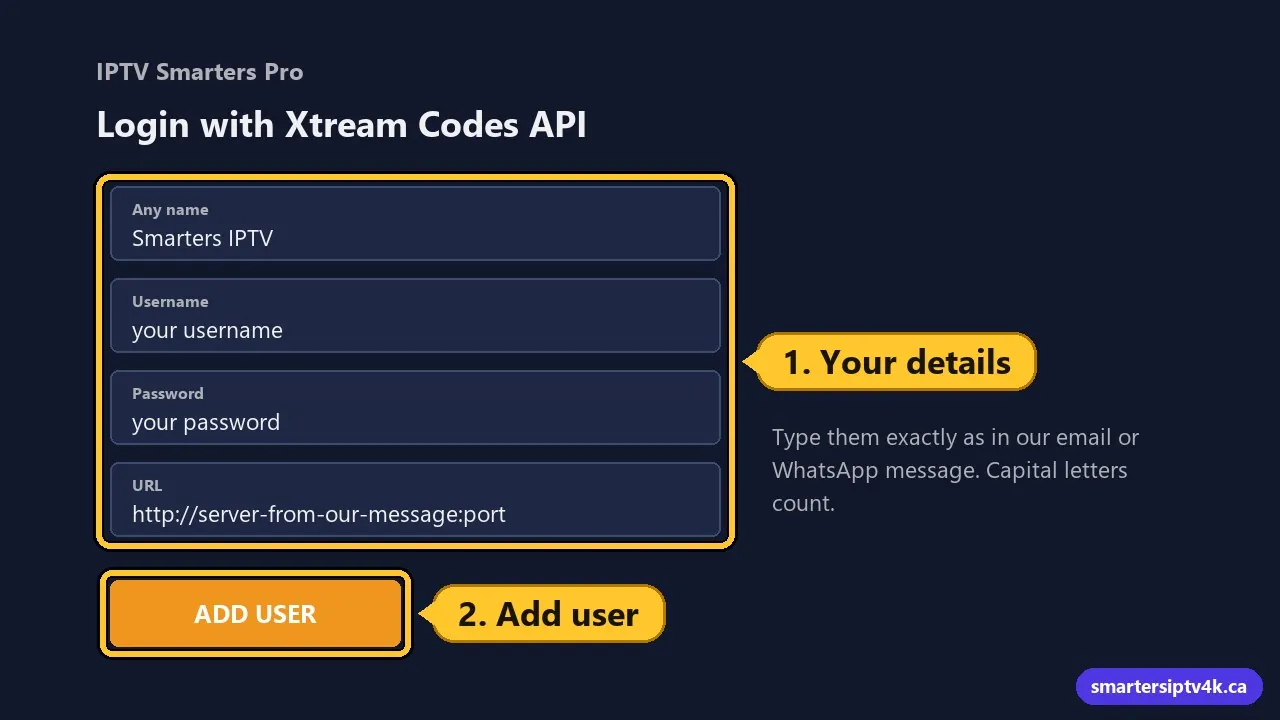
- Open IPTV Smarters Pro. You can find it under Your Apps & Channels on the home screen.
- Accept the terms of use.
- Choose Login with Xtream Codes API. This is the fastest login and loads the TV guide automatically.
- Fill in the fields:
- Any name: a profile name of your choice, such as “Home”.
- Username and Password: exactly as we sent them. They are case sensitive.
- URL: the server address, including
http://and the port number if there is one.
- Select Add User. The app downloads your channels, movies and series. This takes 10 to 60 seconds the first time.
For a full walkthrough of every screen in the app, see our IPTV Smarters Pro login and setup guide.
Step 5: Load the TV guide (EPG)
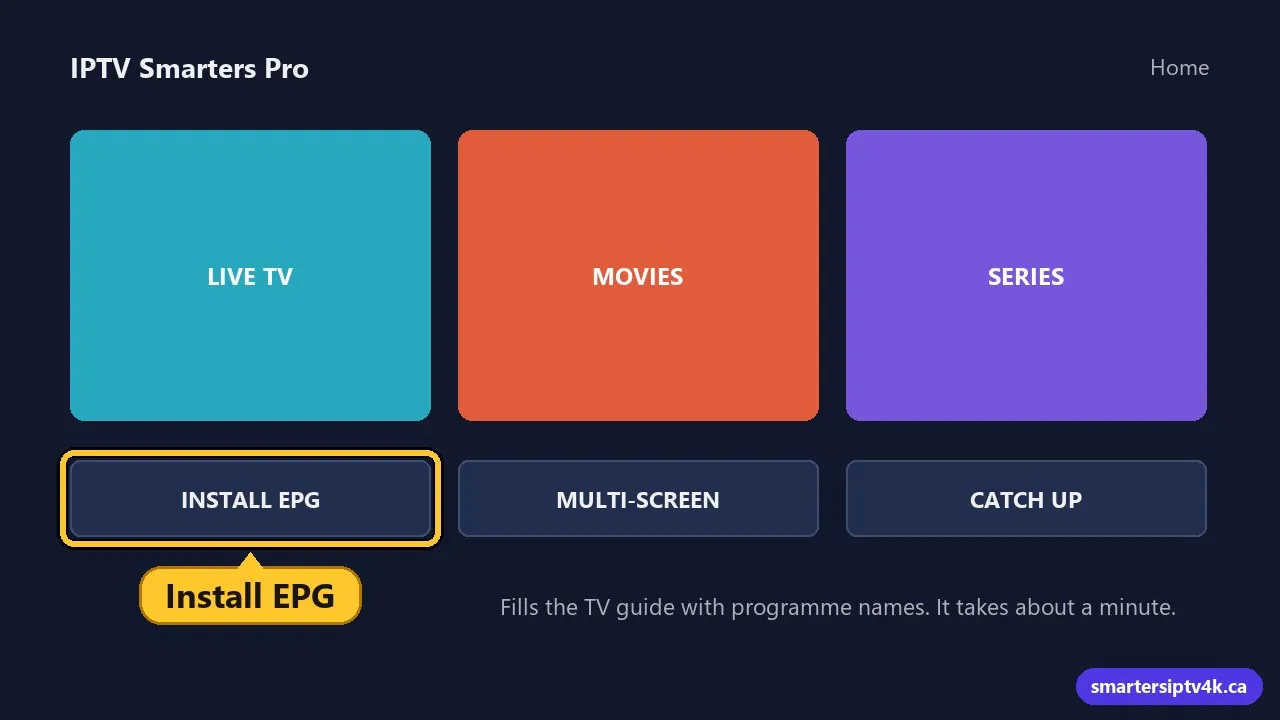
Open Live TV and pick a category. If you see channel names but no program information, go back to the dashboard and select Install EPG (or the refresh icon at the top). The guide usually fills in within a minute. If it stays empty, our guide to fixing an empty EPG covers the other causes.
Step 6: Put the app on your home screen
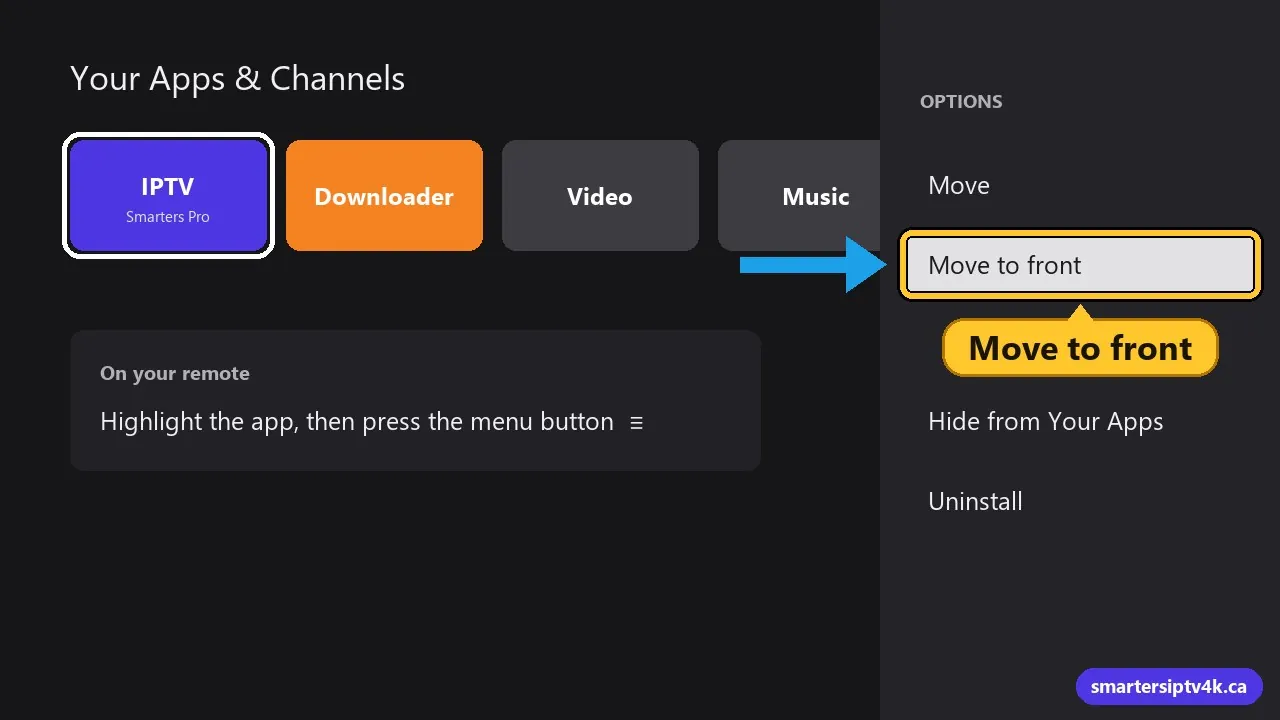
To open IPTV Smarters in one click, press and hold the Home button, choose Apps, highlight IPTV Smarters, press the menu button (three lines) and choose Move to front.
Which IPTV app is best on a Firestick?
Any IPTV player that supports Xtream Codes works with your subscription. This guide uses IPTV Smarters Pro; these are the other common choices on a Fire TV Stick:
| App | Good for | Guide |
|---|---|---|
| IPTV Smarters Pro | Simple layout, live TV, movies and series in one app | This page |
| TiviMate | A cable-style TV guide; Premium adds recording and favourites | TiviMate setup, TiviMate Premium |
| XCIPTV | Free player with movies and series unlocked | XCIPTV setup |
| IBO Player Pro | The same app on Firestick and Smart TVs | IBO Player Pro |
| Televizo | Light and fast on older Firesticks | Televizo |
Not sure? Start with IPTV Smarters Pro: you can install a second app later and log in with the same details.
Common problems and fixes
“Invalid username or password”
Check for a space at the end of the username or password, and remember that capital letters matter. Also check that the URL includes http:// and the port. Trial logins expire after the trial period, so if you just upgraded, use the new login we sent.
The app is slow or keeps closing
The Firestick has little storage and memory. Go to Settings > Applications > Manage Installed Applications, open IPTV Smarters and choose Clear cache. Uninstall apps you never use, and restart the Firestick once a week (Settings > My Fire TV > Restart). More tips in how to clear the IPTV cache.
Buffering during live sports
Most buffering comes from Wi-Fi, not the service. Move the router closer, use the 5 GHz network, or add an Amazon Ethernet adapter. Our 8 fixes for IPTV buffering go through every cause in order.
Channels load but show a black screen
Open the app Settings > Player Selection and switch between the built-in player and the other options. One of them usually fixes black screens on specific channels.
Tips for the best picture
- Use a Fire TV Stick 4K or 4K Max for 4K channels. The basic HD stick cannot play them.
- In the Firestick Display & Sounds settings, set the video resolution to Auto so it matches your TV.
- Use the HDMI extender that came in the box. It moves the stick away from the TV’s metal back and improves Wi-Fi.
- Turn off Data Monitoring in Settings > Preferences. It can limit video quality.
More players with their own guide: IBO Player Pro, Televizo, IPTV Extreme.
IPTV Smarters on Firestick: frequently asked questions
Is IPTV Smarters free on Firestick?
Yes. The app itself is free. It is only a player: the channels come from your IPTV subscription, which you enter when you log in.
Can I use the same login on two Firesticks?
Your plan covers a set number of screens watching at the same time. You can install the app on as many devices as you like, but if more devices watch at once than your plan allows, one of them will stop. See watching IPTV on multiple devices.
Do I need a VPN on my Firestick?
It is not required to make IPTV work. Some people use one for privacy. If you do, pick a server in Canada close to you to keep speeds high. Read do you need a VPN for IPTV for the pros and cons.
Can I use TiviMate instead?
Yes. TiviMate is a popular alternative with a TV-style guide. Follow our TiviMate setup guide; your login works the same way.
Need help?
Stuck on a step? Send us a message with a photo of your screen and your Firestick model. Our team will walk you through it for free. New to Smarters IPTV? Start with a free trial or see our plans and prices in CAD.