

The Apple TV 4K is one of the best devices for IPTV. It is fast, it gets software updates for years, and its picture quality is excellent on 4K and HDR TVs. Setup is simple because everything comes from the App Store: no sideloading, no developer settings. This guide shows how to set up IPTV on Apple TV in about five minutes. For more background, see Apple TV Support.
This guide shows which apps to use, how to log in, and the settings that make live TV look its best on Apple TV.
Quick answer
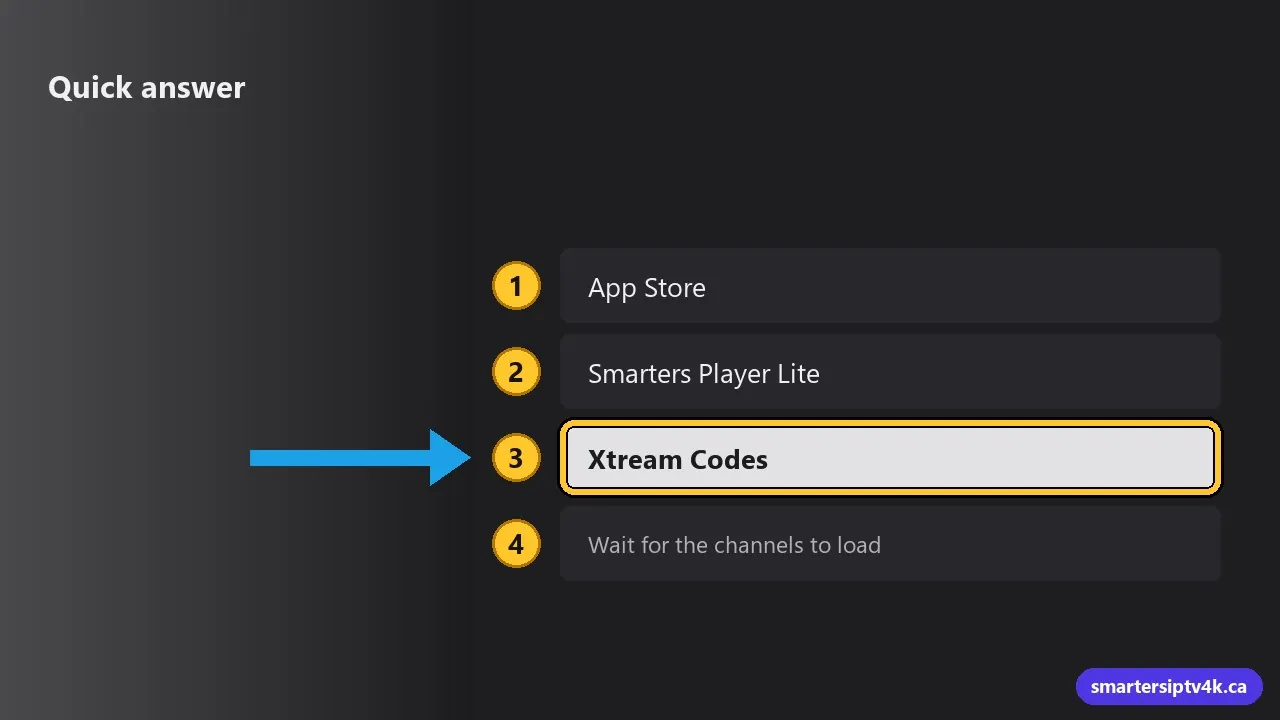
- Open the App Store on your Apple TV.
- Search for an IPTV player such as Smarters Player Lite and install it.
- Open the app, choose the Xtream Codes login, and enter your username, password and server URL.
- Wait for the channels to load, then open Live TV.
Which Apple TV do you need?
- Apple TV 4K (any generation): ideal. Fast, supports 4K and HDR, and runs every current IPTV player. The model with Ethernet is best for live sports.
- Apple TV HD: works well for HD channels, but cannot play 4K and may be slower with very large channel lists.
- Older Apple TV models (3rd generation and earlier) do not have an App Store and cannot run IPTV apps.
Make sure your Apple TV is on a recent version of tvOS: Settings > System > Software Updates > Update Software.
What you need
- An Apple TV HD or Apple TV 4K signed in with your Apple Account.
- Your username, password and server URL, which we send by email or WhatsApp once your free trial or plan starts.
- An internet connection of 10 Mbps for HD or 25 Mbps for 4K.
Step 1: Choose an IPTV player
Several good players are available in the Canadian App Store. All of them work with the same login:
- Smarters Player Lite: free, from the makers of IPTV Smarters. Same layout as on Firestick and Android, so it is the easiest if you use Smarters elsewhere.
- Other players with Xtream Codes or M3U support: several paid and free players offer a TV-style guide and extra features. If you prefer another app, just make sure it supports “Xtream Codes” login.
Apps come and go from the App Store. If you cannot find one, message us and we will recommend a current alternative.
Step 2: Install the app

- Open the App Store from the Apple TV home screen.
- Select Search and type the app name with the Siri Remote, or hold the Siri button and say it.
- Select Get. Confirm with your Apple Account if asked.
Tip: you can also install from your iPhone. Download the app on the iPhone and, if Automatically Install Apps is turned on in the Apple TV App Store settings, it appears on the Apple TV too.
Step 3: Log in
- Open the app and accept the terms.
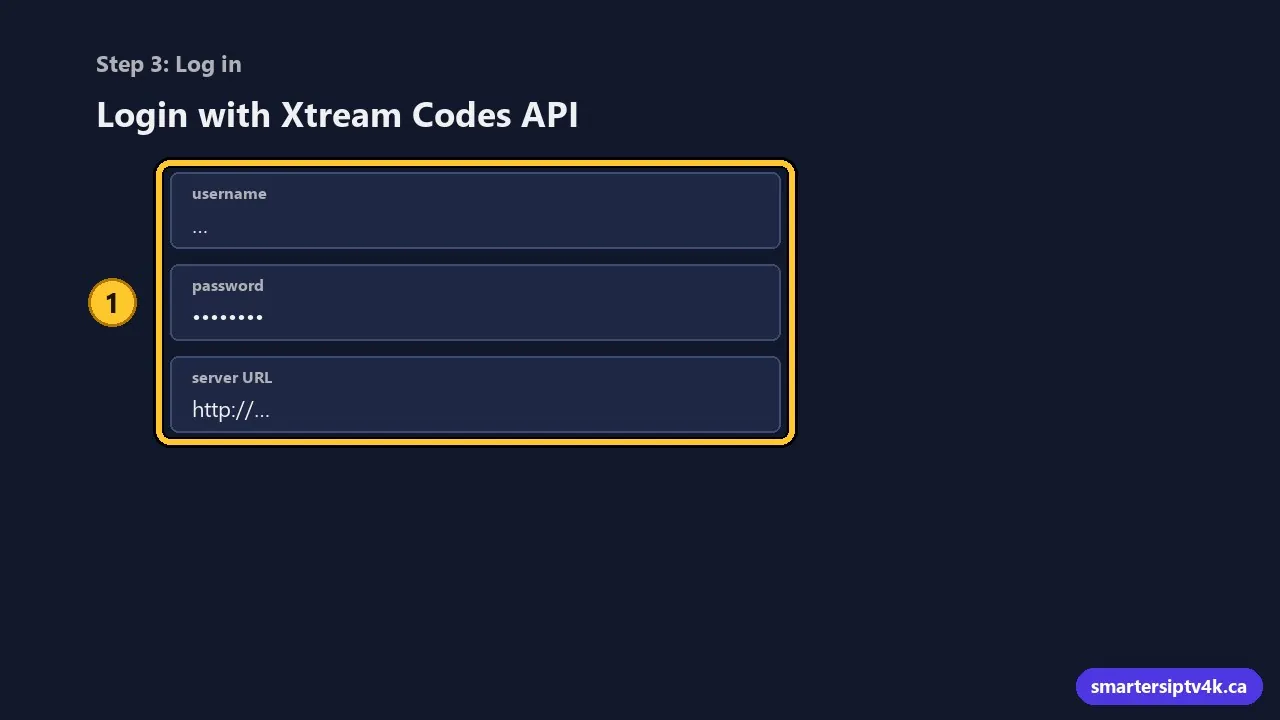
- Choose Login with Xtream Codes API (the wording can vary slightly by app).
- Enter a profile name, then your username, password and server URL.
- Confirm and wait for the content to load.
Typing tip: typing long URLs with the Siri Remote is slow. When the keyboard appears, your iPhone shows a notification to type with its keyboard instead. Tap it and paste the details straight from our message.
Step 4: Load the TV guide
Open Live TV and check the program guide. If it is empty, look for Refresh EPG or Update in the app settings. Our EPG guide explains the other fixes.
Best settings for live TV on Apple TV
- Match Content: go to Settings > Video and Audio > Match Content and turn on Match Dynamic Range and Match Frame Rate. Sports and movies play at their real frame rate, which removes stutter.
- Format: set the video format to 4K SDR with Match Dynamic Range on. The Apple TV switches to HDR only when a stream uses it, so normal channels do not look washed out.
- Use Ethernet: if your Apple TV 4K has a network port, use it. It is the single best fix for buffering during big games.
Common problems and fixes
The app will not log in
Check each detail again, especially capital letters and the http:// at the start of the URL. Using the iPhone keyboard to paste the details avoids typos.
Streams buffer or freeze
Restart your router and the Apple TV (Settings > System > Restart). Move to Ethernet or 5 GHz Wi-Fi. Work through our buffering checklist for the rest.
Some channels play without sound
Go to Settings > Video and Audio > Audio Format and try switching Change Format on, or set the app’s audio option to stereo. A few channels use audio formats that some sound bars do not decode.
Get more out of your IPTV app on Apple TV
Build a favourites list
Scrolling through thousands of channels with the Siri Remote gets old fast. In most players, highlight a channel, then press and hold the clickpad (or press the play/pause button) to add it to Favourites. Put your local news, hockey and kids channels there, and open the Favourites category first every time.
Use catch-up for games you missed
Channels marked with a clock or rewind icon support catch-up: you can watch programs from the past few days straight from the guide. Open the guide, move back in time, and select the program. It is ideal for the late West Coast games that start after bedtime in Toronto or Halifax.
Set up profiles and parental controls
If children use the Apple TV, set a PIN on adult and mature categories in the app’s Parental Control settings. On the Apple TV itself, Settings > General > Restrictions can also stop new apps from being installed without a passcode. Our guide to IPTV parental controls explains the options.
Keep the app up to date
Go to Settings > Apps and make sure Automatically Update Apps is on. Player updates often fix playback problems on new channels and new tvOS versions, so an old version is a common cause of streams that suddenly stop working.
IPTV on Apple TV: frequently asked questions
Can I use the Apple TV app for IPTV?
No. Apple’s own TV app only shows Apple TV+ and partner services. Your subscription plays in a separate IPTV player app.
Can I watch on my iPhone too?
Yes. Install the same app on your iPhone or iPad and log in with the same details. See IPTV on iPhone and iPad. Your plan limits how many screens can watch at the same time.
Can I AirPlay from my iPhone instead?
You can, but a native app on the Apple TV gives a steadier picture and does not drain your phone. AirPlay is handy as a quick backup.
Need help?
Send us a photo of the screen where you are stuck and we will help you for free. New to Smarters IPTV? Start a free trial or see our plans.