

Here is how parental control on IPTV works and how to set your PIN. An IPTV lineup includes everything from cartoons to late-night movies. If children use the TV, tablet or phone, a few minutes with parental controls gives you peace of mind: adult and mature categories stay locked behind a PIN that only you know. This guide shows how to set it up in the most popular apps, how to add a second layer on the device, and what to do if you forget the PIN. For more background, see MediaSmarts, Canada’s centre for digital media literacy.
Parental control on IPTV: quick answer
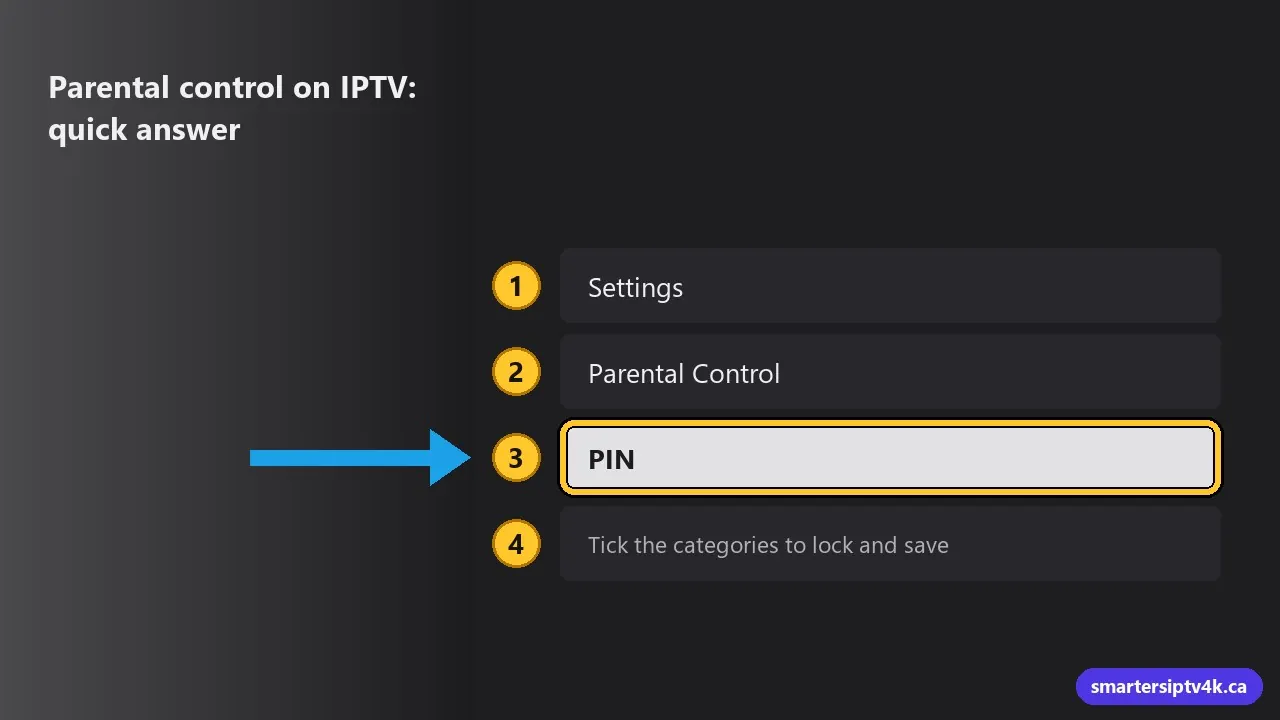
- Open Settings in your IPTV app.
- Choose Parental Control.
- Create a 4-digit PIN and confirm it.
- Tick the categories to lock and save.
Locked categories now ask for the PIN. The exact steps for IPTV Smarters Pro and TiviMate are below, with what to do if you forget the PIN.
How IPTV parental control works
Parental control in IPTV apps works by category. You choose a PIN, then lock the groups of live channels, movies and series you want to protect. When someone opens a locked category, the app asks for the PIN. Some apps can also hide locked categories completely.
The PIN is stored in the app on each device. If you use IPTV on several devices, set it up on each one.
IPTV Smarters Pro
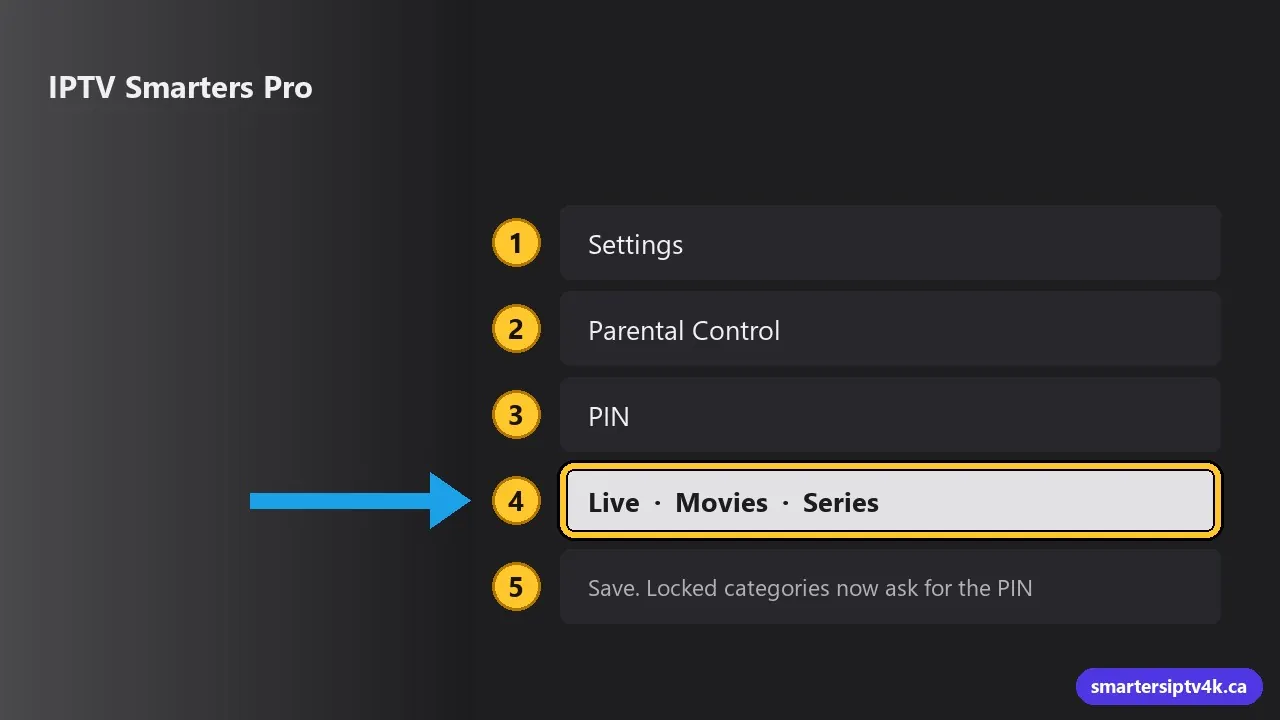
- From the dashboard, open Settings (gear icon).
- Choose Parental Control.
- On first use, create a PIN (usually 4 digits) and confirm it.
- Open the Live, Movies and Series tabs and tick every category you want to lock, including adult groups.
- Save. Locked categories now ask for the PIN.
In the same menu you can change the PIN at any time. More about the app: IPTV Smarters Pro guide.
TiviMate
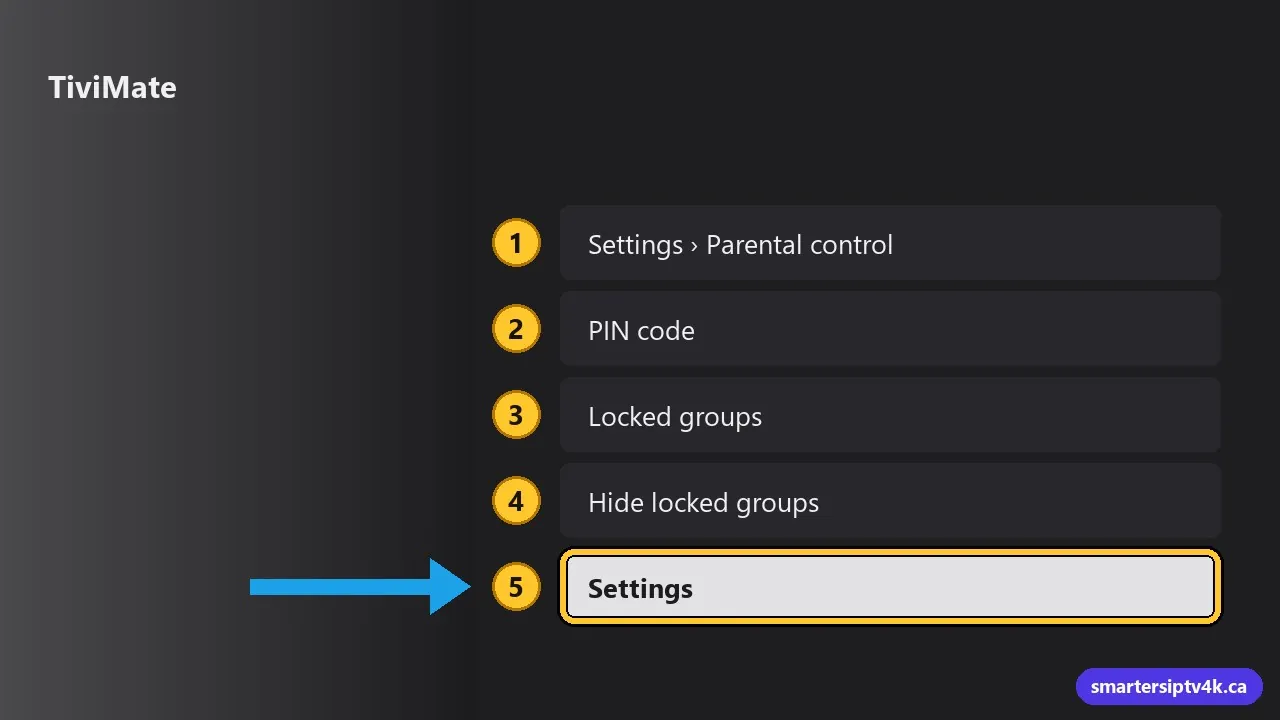
- Go to Settings > Parental control.
- Set a PIN code.
- Choose Locked groups and select the categories to lock.
- Optionally, turn on Hide locked groups so they do not appear at all.
- You can also require the PIN to open Settings, so children cannot turn it off.
See the TiviMate guide.
Other apps
- XCIPTV: Settings > Parental Control, set a PIN and lock categories. See XCIPTV guide.
- GSE Smart IPTV: parental control in the app settings, with a password for chosen groups. See GSE guide.
- Formuler MyTVOnline: lock groups from the channel group settings with a PIN. See Formuler guide.
- Smart TV apps: look for Parental or Lock in the app settings.
Add a second layer on the device
An app PIN protects content inside the app. The device’s own controls stop children from installing other apps or changing settings:
- Firestick: Settings > Preferences > Parental Controls. Turn them on to require a PIN for purchases, app launches and installs.
- Google TV: create a kids profile with only approved apps.
- Apple TV, iPhone and iPad: Screen Time or Restrictions can limit apps, content ratings and app installs.
- Samsung and LG TVs: program rating locks and app locks in the TV’s settings, under General or Safety menus.
Tips for families
- Choose a PIN that is not a birthday or 1234, and do not enter it while children are watching.
- Lock not only adult categories but also mature movie and series groups if your children are young.
- Create a favourites list of children’s channels so they have what they need without browsing.
- Use a separate profile or device for the kids, with its own locks.
- Check the settings again after an app update or reinstall, since a reset app loses its PIN.
Forgot the PIN?
Options depend on the app:
- Clear the app’s data (not only the cache). This resets the app, including the PIN, favourites and login. Log in again with your details. Steps: how to clear the IPTV cache.
- Reinstall the app if clearing data is not available.
- Some apps have a default PIN (often 0000) before you set one. If you never changed it, try that.
Keep your login message handy before resetting. If you lost it, contact us.
Parental Control on IPTV: frequently asked questions
Can you lock adult content on our side?
Ask us whether a lineup without adult categories is available for your account. For children’s devices, that is the most reliable option.
Does parental control affect other users?
Only on the device where it is set. Other devices use their own settings.
Can I lock individual channels?
Most apps lock whole categories. For a tighter control, give children a favourites list or a kids profile.
Need help?
Tell us your app and device, and we will help you set up parental control step by step. New here? Start a free trial.