

GSE Smart IPTV is one of the longest-running IPTV players, available on iPhone, iPad, Apple TV and Android. It supports M3U playlists and Xtream Codes logins, has a built-in TV guide, and offers lots of settings for people who like to fine-tune. This guide shows how to add your subscription both ways, load the guide, and fix the usual issues. Follow these steps to set up GSE Smart IPTV on your Apple device. For more background, see Apple TV Support.
Before you start
- GSE Smart IPTV installed from the App Store (iPhone, iPad, Apple TV) or Google Play (Android). The free version may show ads; a paid version removes them.
- Your login details: username, password and server URL, and your M3U link. We send these when your free trial or plan starts.
Method 1: Xtream Codes login (recommended)
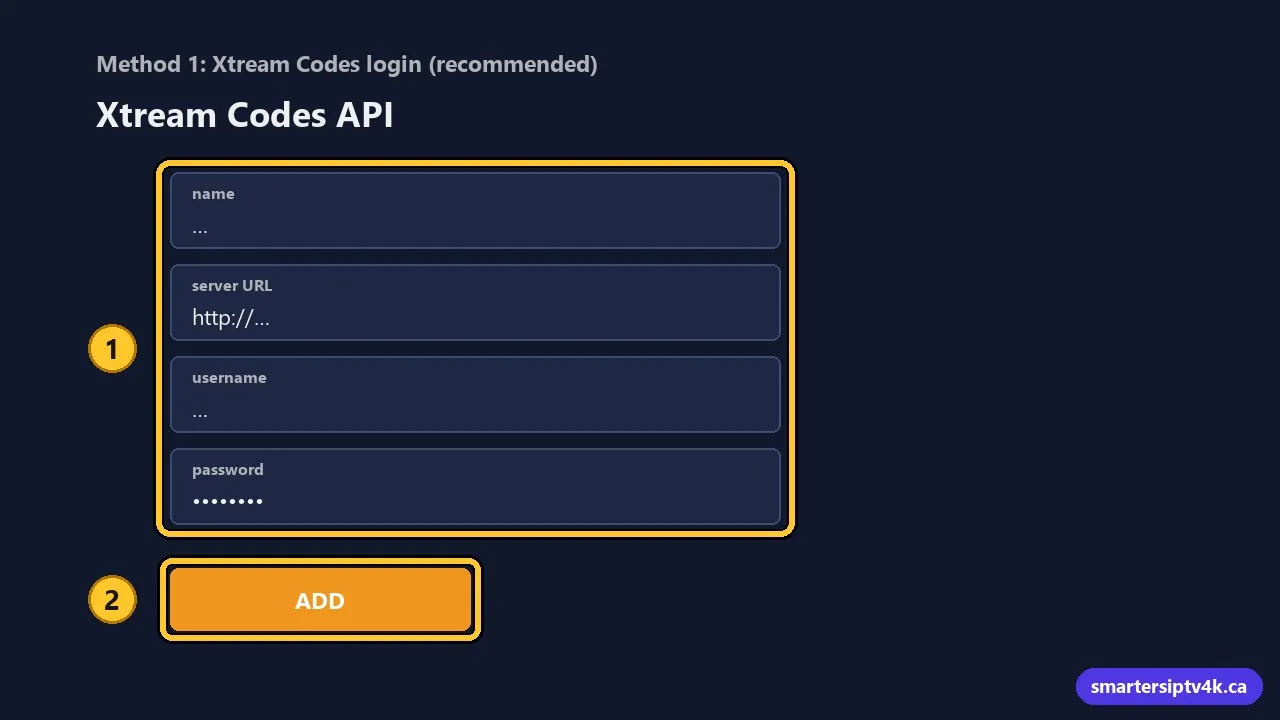
This method loads channels, movies, series and the guide together.
- Open GSE and accept the terms.
- Open the menu (the three lines at the top left on phones) and choose Xtream Codes API.
- Tap + to add an account.
- Enter a name, the server URL (with
http://and the port), your username and password. - Tap Add or Login, then open the account to load your content.
Method 2: M3U playlist
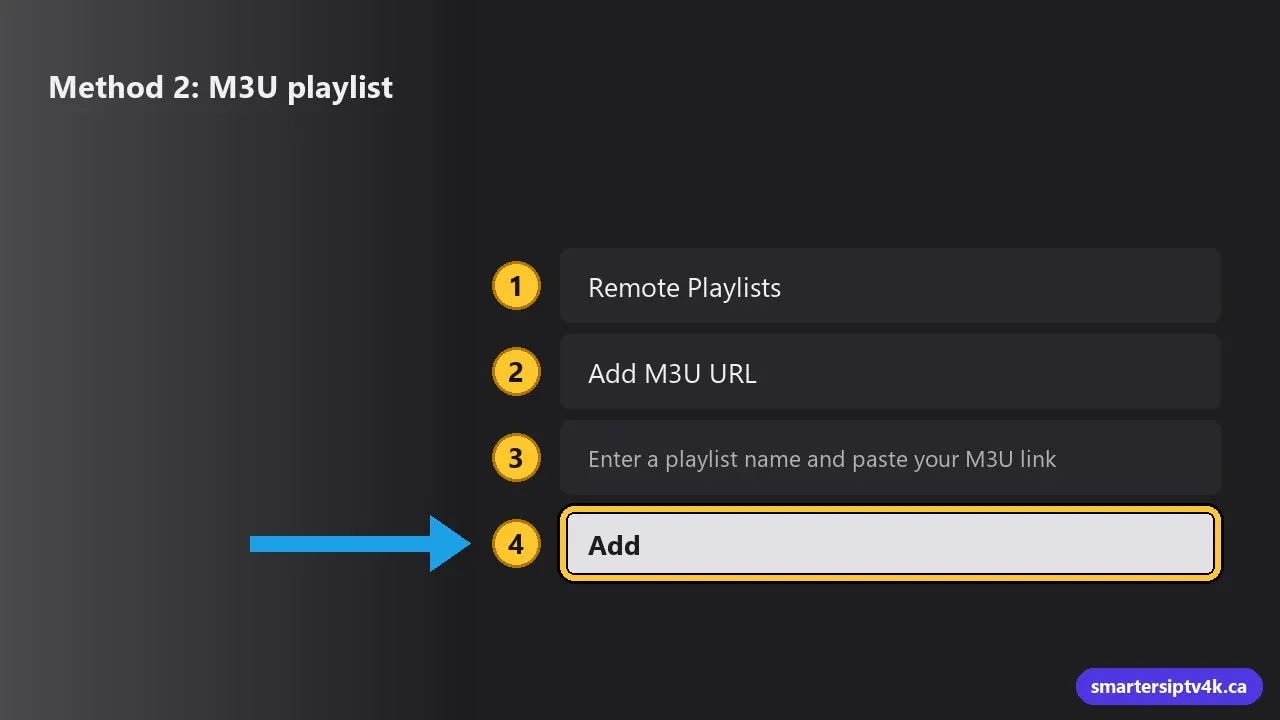
- From the menu, choose Remote Playlists.
- Tap +, then Add M3U URL.
- Enter a playlist name and paste your M3U link.
- Tap Add, then tap the playlist to open it.
With M3U, add the guide separately (see below). Learn the difference in what M3U is.
Load the TV guide (EPG)
- Xtream login: the guide usually loads automatically. If not, open the account options and choose to update the EPG.
- M3U login: open the menu, choose EPG Sources (or Remote EPG), tap +, and paste the EPG link we provide. Then update.
If program times are off, adjust the EPG time offset in the settings for your time zone. More in our EPG guide.
On Apple TV
The Apple TV version works the same way. To avoid typing long URLs with the Siri Remote, accept the iPhone keyboard notification and paste the details from your phone. Some versions also let you sync playlists from the iPhone app. Apple TV settings for the best picture are in our Apple TV guide.
Useful settings
- Player options: GSE includes several playback engines. If a channel will not play, try another in the player settings.
- Favourites: long-press a channel to add it. Open Favourites first for quick access.
- Parental control: set a password for adult groups in the settings. See parental controls.
- Buffer: increase the buffer time if streams pause on Wi-Fi.
Common problems and fixes
“Failed to load playlist”
Check that the whole M3U link was pasted with no spaces, and that your plan is active. Try the Xtream Codes login instead.
Channels play without sound
Switch the player engine, or change the audio output setting in the player options. On iPhone, check the silent switch.
Ads are distracting
The free version includes ads. Try Smarters Player Lite on Apple devices, which is free: see IPTV on iPhone.
Buffering
Move closer to the router or use 5 GHz Wi-Fi. See buffering fixes.
GSE or another player?
GSE is great if you like detailed settings and use both Apple and Android devices. If you prefer something simpler, IPTV Smarters and Smarters Player Lite are easier for beginners. Compare them in the best free IPTV player apps.
GSE Smart IPTV: frequently asked questions
Does GSE include channels?
No. GSE is only a player. Channels come from your subscription.
Can I use GSE on my phone and Apple TV at the same time?
Yes, within the number of screens in your plan. See multiple devices.
Need help?
Send us a screenshot of the GSE screen where you are stuck and we will guide you. New to IPTV? Start a free trial.