

LG Smart TVs run webOS, one of the smoothest smart TV systems available. On most LG models from the last several years, you can install an IPTV player straight from the TV’s app store and watch your channels without any extra device. This guide shows how to install IPTV on an LG Smart TV running webOS. For more background, see LG Canada support.
This guide walks through the setup on webOS, the two ways apps log in, how to use the Magic Remote in IPTV apps, and what to do if your model has no suitable app.
Quick answer
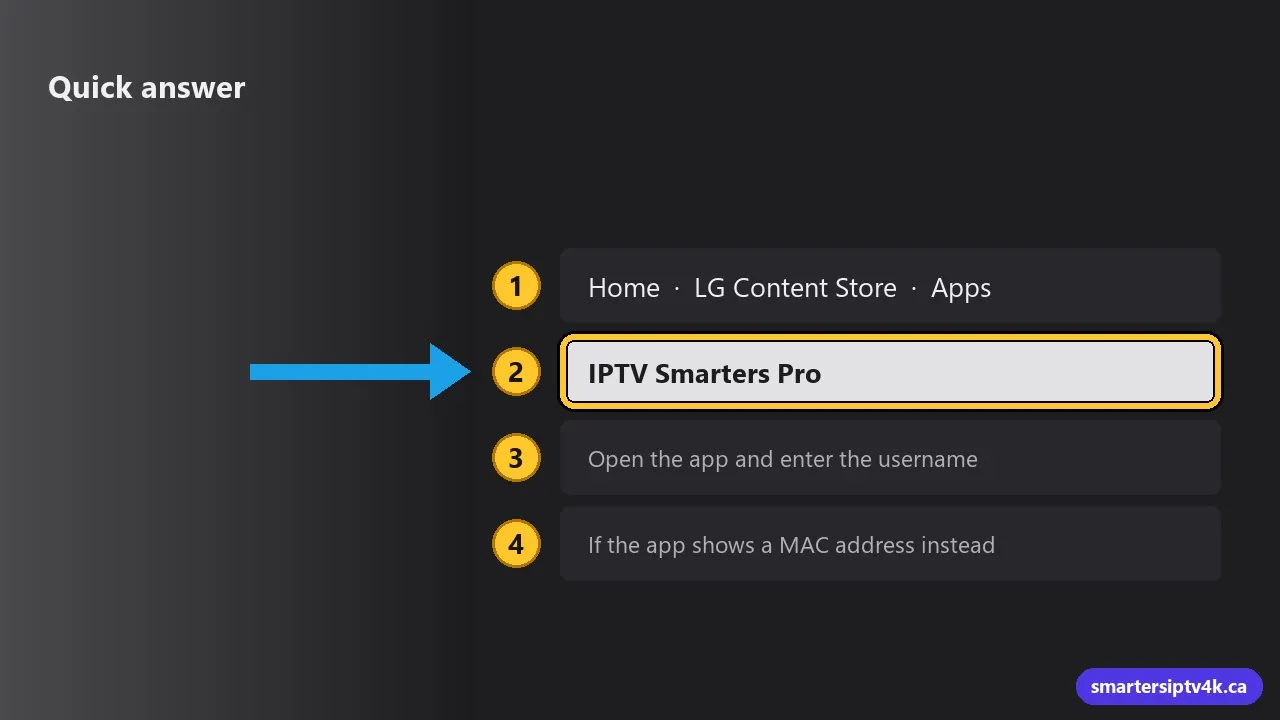
- Press Home and open the LG Content Store (called Apps on newer models).
- Search for an IPTV player such as IPTV Smarters Pro and install it.
- Open the app and enter the username, password and server URL we sent you.
- If the app shows a MAC address instead, send it to us and we activate it.
Which LG TVs work with IPTV?
Any LG Smart TV running webOS 4.0 or newer (roughly 2018 onward) has a good choice of IPTV players. That includes the popular OLED (C and G series), QNED and NanoCell lines, and the UHD range. Older webOS versions may still work, with fewer apps to choose from.
To check your version, go to Settings > All Settings > General > About This TV (on some models Support > TV Information). You will see the webOS version and model number.
Like other TV brands, LG’s Canadian app store does not carry every app available elsewhere. If one player is missing, another will do the same job with your login.
What you need
- An LG Smart TV connected to the internet.
- Your username, password and server URL, sent by email or WhatsApp when your free trial or plan starts.
- An LG account signed in on the TV (the store asks the first time you install something).
Step 1: Update webOS
Go to Settings > All Settings > General > About This TV and choose Check for updates. Turn on automatic updates. Many “app not found” or crashing problems disappear after an update.
Step 2: Open the LG Content Store
Press the Home button on the remote. Open the LG Content Store, or Apps on newer models. Select the search icon at the top and search for IPTV Smarters Pro. If it is not listed for your model, look for another IPTV player that supports Xtream Codes or M3U logins.
Step 3: Install the app
Select the app, choose Install, and wait a few seconds. Choose Launch when it is ready. The app is added to the launcher bar at the bottom of the screen; you can move it to the front with the edit (pencil) option.
Step 4: Log in with your details
If the app asks for a username and password
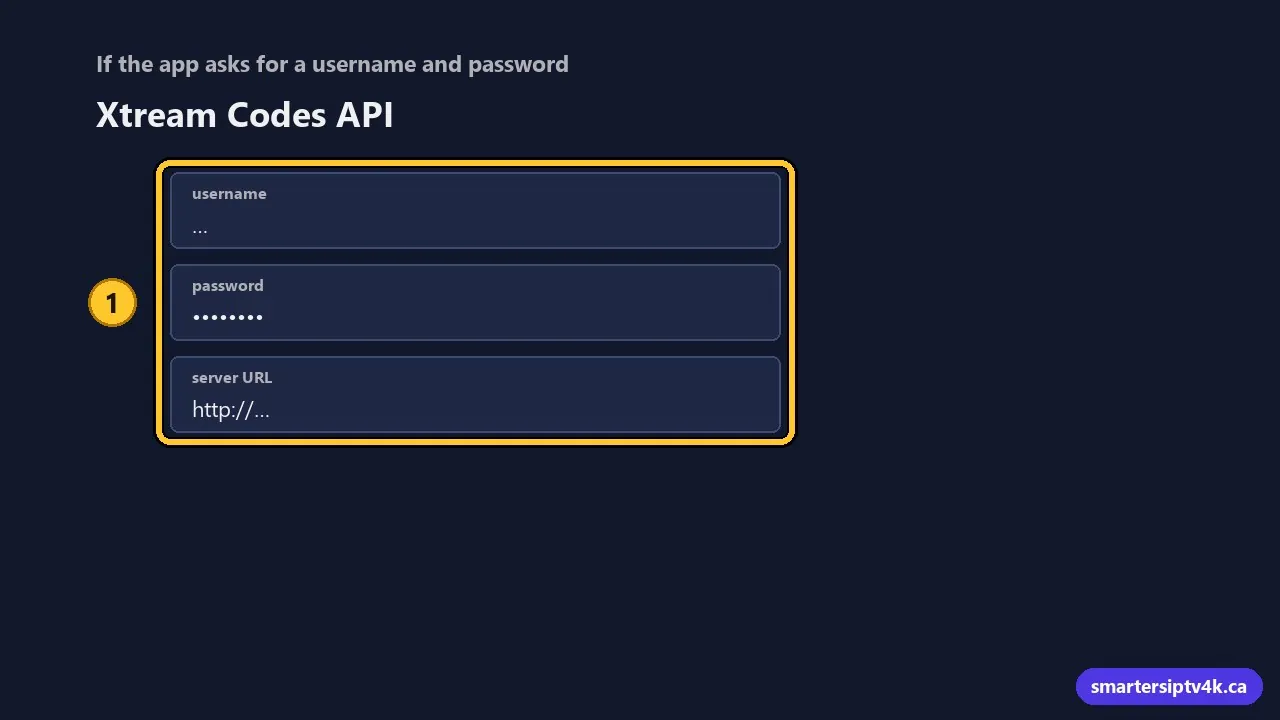
- Choose the login option called Xtream Codes API or similar.
- Enter a profile name of your choice.
- Enter your username, password and server URL exactly as written. Capital letters matter, and the URL needs
http://at the start. - Confirm and wait for the channel list to load. The first load can take up to a minute.
If the app shows a MAC address or device key
Some LG apps link to your subscription through the TV’s MAC address instead of a login form. The address appears on the app’s first screen. Take a photo and send it to us: we connect your subscription to the TV, and your channels appear after you restart the app. Some of these apps charge a small one-time activation fee to their developer, separate from your plan.
Step 5: Load the TV guide
Open the live TV section and check that the guide shows current programs. If it is empty, use Refresh or Update EPG in the app settings. More causes and fixes are in our EPG guide.
Using the Magic Remote in IPTV apps
LG’s Magic Remote works like a mouse: point and click with the scroll wheel. In IPTV apps, the arrow keys are usually more precise for long channel lists:
- Arrows: move through categories and channels.
- Scroll wheel click (OK): select a channel or open the menu while watching.
- Channel up and down: switch channels in full screen in most apps.
- Back: return to the list without closing the app.
If the pointer gets in the way, shake the remote to bring it back, or press an arrow key to hide it.
No IPTV app on your LG TV?
For older LG models, or if you want TiviMate’s TV-style guide, plug a streaming stick into an HDMI port:
- Fire TV Stick 4K: easy and affordable. Follow the Firestick guide.
- Google TV or Android TV device: the widest app choice. See the Android TV guide.
Switch to the stick with the Input button. LG’s SIMPLINK (HDMI-CEC) setting lets your LG remote control most sticks too.
Common problems and fixes
The app closes or restarts by itself
webOS closes apps when memory runs low. Unplug the TV for 30 seconds to fully restart it, and uninstall apps you do not use. If you have Quick Start+ turned on, turn it off in General > Devices for a cleaner restart each time.
Channels buffer on Wi-Fi
Connect the TV with an Ethernet cable if you can. On Wi-Fi, use your router’s 5 GHz network. Our buffering fixes guide goes through every step.
Sound but no picture
Open the app’s settings and change the video player or decoder option (often “Hardware” vs “Software”). Some channels play better with one or the other.
Make daily watching easier
Add favourites
In most LG IPTV players, highlight a channel and press and hold OK (or use the menu button) to add it to Favourites. Open the Favourites group first each time and you skip the long lists entirely.
Watch past programs with catch-up
Channels that support catch-up show a clock or rewind icon. Open the guide, go back in time, and pick the program you missed. It works well for news and games that aired while you were at work.
Start the app faster
Press the Home button, highlight the app in the launcher bar, and use the edit option to move it to the first position. Some LG models also let you set an app to open automatically when the TV turns on, under General > Devices > TV Management or the Home Settings menu, depending on your webOS version.
More players with their own guide: IBO Player, IBO Player Pro, BOB Player, Hot IPTV, Net IPTV, Set IPTV.
IPTV on an LG Smart TV: frequently asked questions
Is LG Channels the same as IPTV?
No. LG Channels is LG’s free built-in service with its own lineup. Your IPTV subscription plays in a separate player app.
Can I watch in 4K on my LG TV?
Yes, on 4K and OLED models, with an internet speed of about 25 Mbps or more. See internet speed for IPTV.
Can I use the same subscription on my phone?
Yes, within the number of screens in your plan. See IPTV on iPhone and iPad or multiple devices.
Need help?
Send us your LG model number and a photo of the app screen, and we will guide you step by step for free. New to Smarters IPTV? Start a free trial or see our plans in CAD.