

Your computer can be a great IPTV screen: a live game on a second monitor while you work, the news on a laptop in the kitchen, or a movie on a desktop in the office. Windows runs several good IPTV players, and setup takes a few minutes. Here are the best ways to watch IPTV on a Windows PC, step by step. For more background, see the Microsoft Store.
This guide covers the three best options for Windows 10 and 11, how to log in with each, and tips for the smoothest playback. Mac users will find a short section at the end.
Quick answer
- Easiest: install IPTV Smarters for Windows from the official website and log in with your username, password and server URL.
- Simple and light: open your M3U link in VLC media player.
- From the Microsoft Store: MyIPTV Player, with a TV guide.
What you need
- A Windows 10 or 11 computer with an up-to-date browser.
- Your username, password and server URL, and your M3U link if you want to use VLC or MyIPTV. We send these when your free trial or plan starts.
- A stable connection: Ethernet or strong Wi-Fi. About 10 Mbps for HD.
Option 1: IPTV Smarters for Windows (recommended)
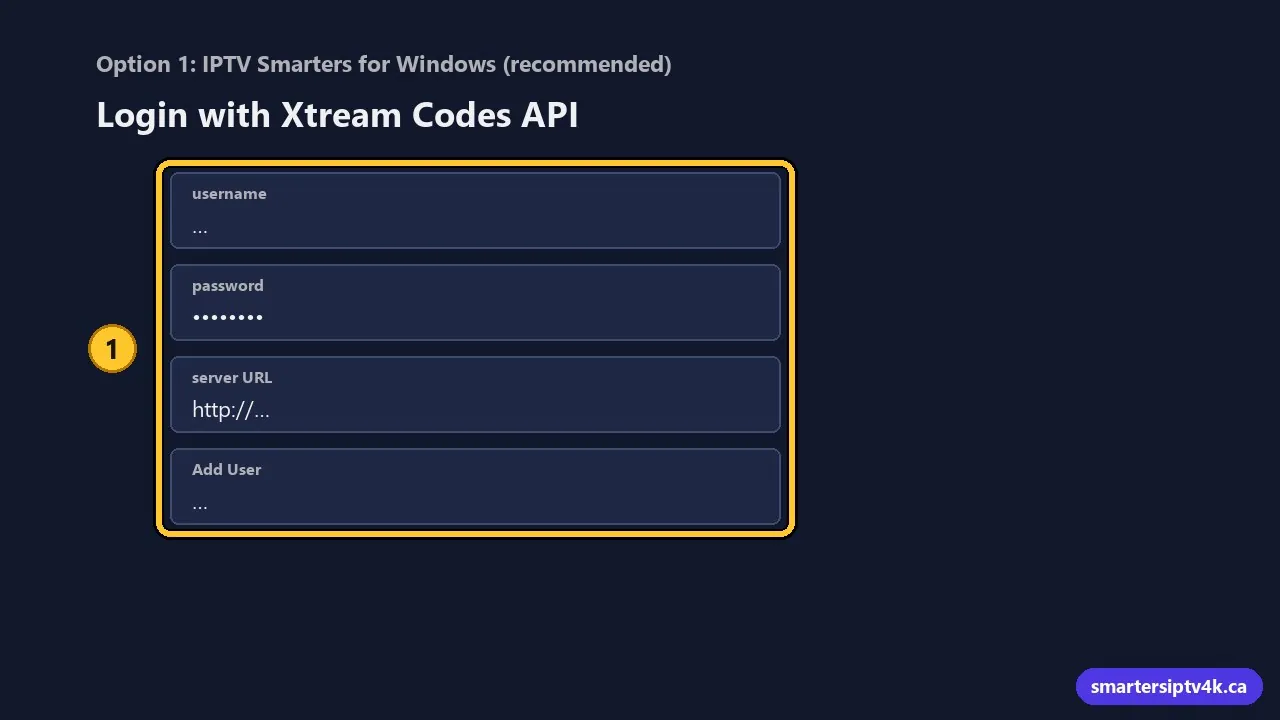
The Windows version of IPTV Smarters looks and works like the app on Firestick and Android, with live TV, movies, series and the guide.
- Open the official download link we send with your login (the old iptvsmarters.com site no longer works, so avoid copies on download sites).
- Download the Windows version and run the installer. If Windows SmartScreen shows a warning, check the publisher, then choose More info > Run anyway only if you downloaded it from the official site.
- Open the app and choose Login with Xtream Codes API.
- Enter a profile name, your username, password and server URL. Copy and paste them from our message to avoid typos.
- Select Add User and wait for your content to load.
The login screens are the same as on TV devices; our IPTV Smarters login guide explains every option.
Option 2: VLC media player
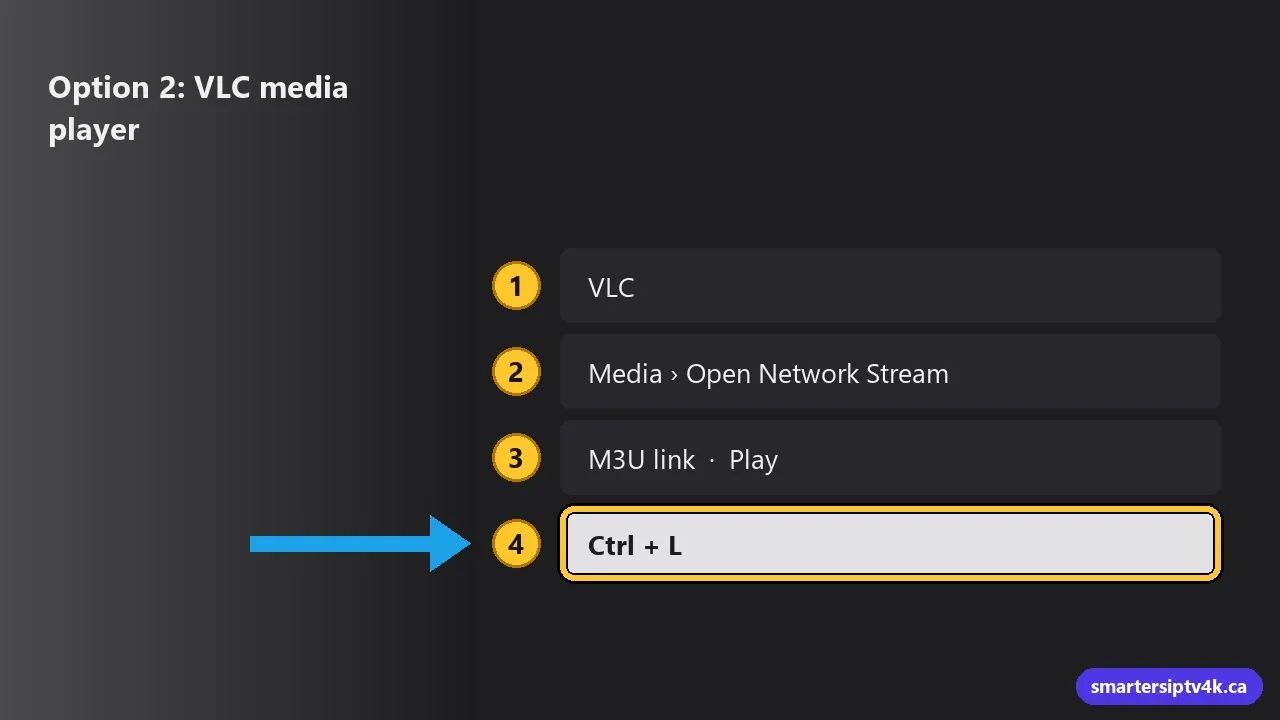
VLC is a free, trusted player that almost every computer can run. It is perfect for quick viewing with no extra setup, though it has no program guide.
- Install VLC from its official website, videolan.org.
- Open VLC and choose Media > Open Network Stream.
- Paste your M3U link and click Play.
- Press Ctrl + L to show the playlist. Double-click a channel to watch it.
Large playlists take a moment to load in VLC. To keep a shortcut, save the playlist with Media > Save Playlist to File. Learn more in what M3U is.
Option 3: MyIPTV Player

MyIPTV Player is a free app from the Microsoft Store with a channel list, favourites and a TV guide. It also runs on Xbox.
- Open the Microsoft Store, search for MyIPTV Player and install it.
- Open Settings in the app and add a new playlist with your M3U link.
- Add the EPG (guide) link if we sent one.
- Select the playlist and go to Channels.
Full walkthrough: how to install IPTV with MyIPTV Player.
Tips for smooth playback on a PC
- Use Ethernet for desktops. For laptops, sit close to the router or use 5 GHz Wi-Fi.
- Close heavy programs: games, video editing and dozens of browser tabs compete for memory.
- Plug in your laptop: on battery saver, Windows reduces performance and video can stutter.
- Update your graphics drivers through Windows Update or your laptop maker’s app for smoother video.
- Use full screen: double-click the video in most players, or press F in VLC.
Watch on the TV from your PC
You can connect the computer to a TV with an HDMI cable and press Windows + P to choose Duplicate or Second screen only. For everyday TV viewing, a dedicated streaming stick is simpler and quieter; see our guide to the best IPTV box in Canada.
On a Mac?
VLC works on macOS exactly as above. IPTV Smarters also offers a Mac version on its official website, and several IPTV players are available in the Mac App Store. The login steps are the same.
Common problems and fixes
VLC plays sound but no picture
Go to Tools > Preferences > Input / Codecs and change Hardware-accelerated decoding to Disable, then restart VLC.
Windows blocks the installer
SmartScreen warns about many small developers’ apps. Only continue if you downloaded from the official website. When in doubt, use VLC or MyIPTV from the Microsoft Store.
Buffering
Test your speed, move to Ethernet, and close other downloads. More in IPTV buffering fixes.
IPTV on a Windows PC: frequently asked questions
Can I watch IPTV in a web browser?
Some player developers offer web versions, but a desktop app is usually more reliable for live TV.
Does the PC count as a screen?
Yes, while playing. See watching on multiple devices.
Need help?
Send us a screenshot (press Windows + Shift + S) of where you are stuck and we will help for free. New here? Start a free trial.