


IPTV Smarters Pro is the most widely used IPTV player in Canada. It runs on Firestick, Android TV, Android phones and tablets, Windows and Mac, and its sister app Smarters Player Lite runs on iPhone, iPad and Apple TV. The app looks the same everywhere, so once you know it on one device, you know it on all of them. Here is how the IPTV Smarters Pro login works on every device. For more background, see Amazon’s Fire TV help pages.
This is the complete guide to logging in, understanding each screen, and fixing the login errors people see most.
Quick answer
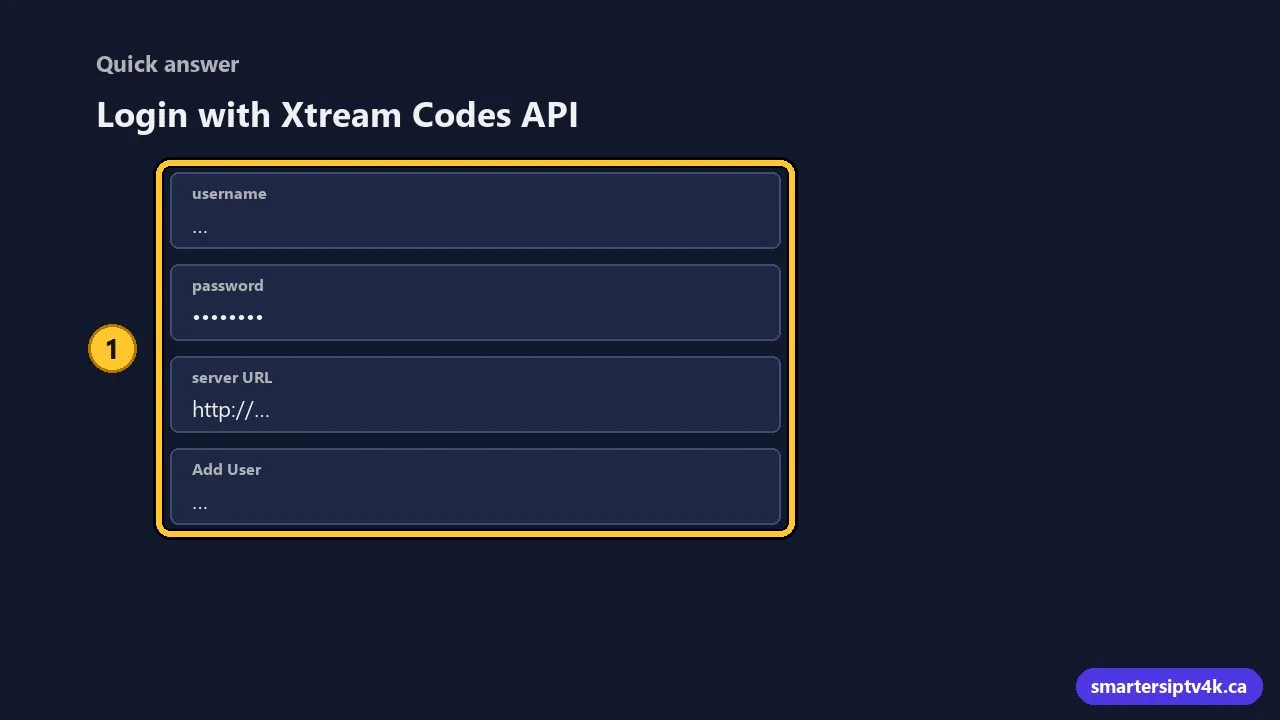
- Open IPTV Smarters Pro and accept the terms.
- Choose Login with Xtream Codes API.
- Enter any name, then your username, password and server URL.
- Select Add User and wait for your channels, movies and series to load.
Where to find your login details
When your free trial or subscription starts, we send you a message by email or WhatsApp with three things:
- Username: usually a mix of letters and numbers.
- Password: case sensitive, so capital letters matter.
- Server URL: starts with
http://and often ends with a port number, like:8080.
Some messages also include an M3U link. You only need it for the M3U login option or other players; the Xtream Codes login is simpler.
Step 1: Install the app on your device
Pick the guide for your device, then come back here for the login:
- Amazon Firestick and Fire TV
- Android TV, Google TV and NVIDIA Shield
- Samsung Smart TV and LG Smart TV
- iPhone and iPad and Apple TV (Smarters Player Lite)
- Windows PC
Step 2: Choose your login method
When you open the app, it offers several ways to add a user:
- Login with Xtream Codes API (recommended): uses your username, password and server URL. Loads live TV, movies, series and the TV guide automatically.
- Load your playlist or file/URL: uses an M3U link. Works, but the TV guide may need to be added separately.
- Other options (such as device activation) are not needed for our service.
Step 3: Enter your details
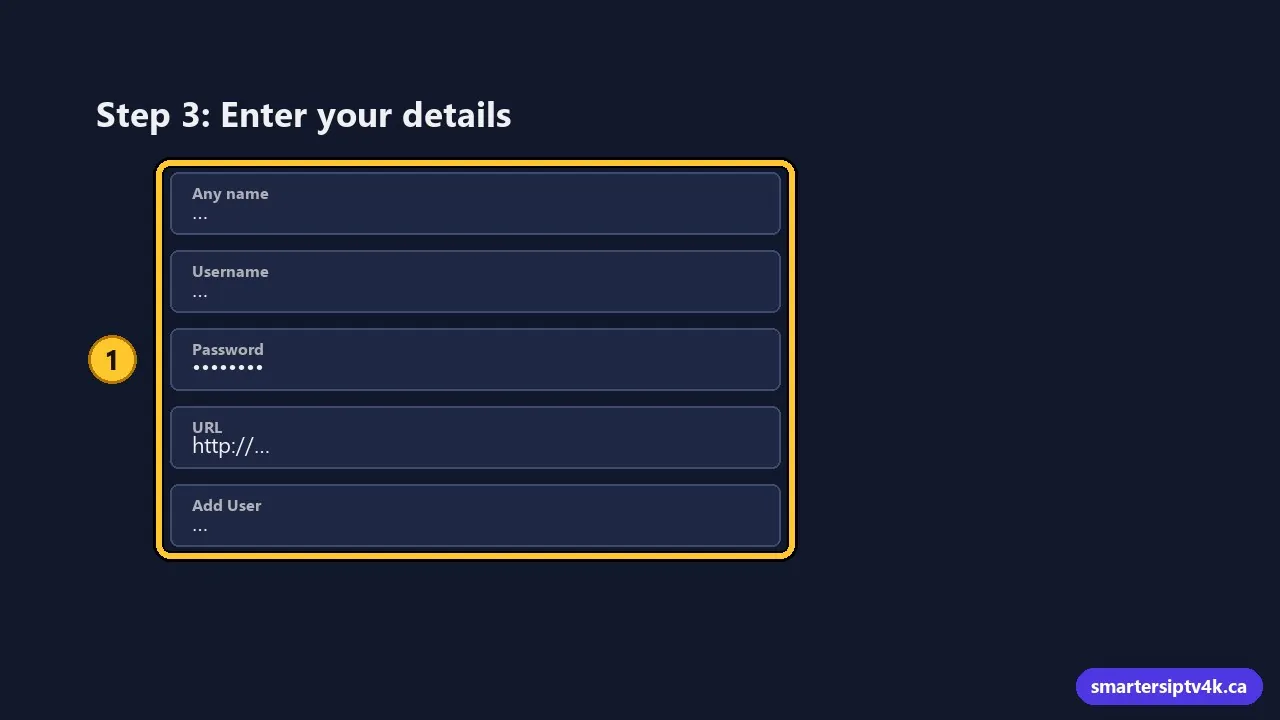
- Any name: type a profile name, such as “Living room”. It is only a label.
- Username: type it exactly as sent.
- Password: type it exactly as sent.
- URL: type the full server address, including
http://and the port. - Select Add User.
Tip for TV remotes: typing on a TV keyboard is slow. On Android TV and Google TV, the Google TV app on your phone can act as a keyboard. On Apple TV, your iPhone offers to type for you. Pasting the details avoids typos.
Step 4: Understand the home screen
After login, the dashboard shows large tiles:
- Live TV: all live channels, organized by category (Canada, Quebec, Sports, News and more).
- Movies: the on-demand movie library, with posters and descriptions.
- Series: TV shows organized by season and episode.
- Catch Up: programs from the past few days on channels that support it.
- Install EPG or the refresh icon: downloads the TV guide.
- Settings (gear icon): player, parental controls, time format and more.
The expiry date of your subscription shows at the bottom or in Account info.
Step 5: Load the TV guide
Select Install EPG once after your first login. The guide shows what is on now and next for each channel. It updates automatically after that. If some channels still show no information, see our EPG guide.
Step 6: Useful settings
- Player Selection: if a channel shows a black screen, switch between the built-in player options here.
- Parental Control: set a PIN and lock categories. See IPTV parental controls.
- Time Format: choose 12-hour or 24-hour times in the guide.
- Automation: turn on automatic updates of channels and the guide when the app starts.
- Subtitles: turn them on or off while watching. See how to turn off subtitles.
Adding a second profile
You can save more than one login, for example a trial and a subscription, or two accounts in one home. From the dashboard, open the user icon or List Users, then Add User. Switch between them from the same screen.
Login errors and how to fix them
“Invalid username or password”
- Check capital letters and look for a space at the end of each field.
- Make sure you are using your current login. Trial logins stop working when the trial ends.
“Server URL invalid” or “Connection error”
- The URL must start with
http://and include the port if we gave one. - Try the same login on mobile data. If it works there, your internet provider or router is the issue; restart the router.
Login works but nothing loads
Wait one full minute on the first load. Then use the refresh icon on the dashboard. If it stays empty, clear the app’s cache (how to clear the IPTV cache) and log in again.
“Your account has expired”
Your plan has ended. Renew and the same login works again. See how to renew your subscription.
Using the M3U login instead

If you prefer an M3U link, or another app asks for one:
- On the login screen, choose Load your playlist or file/URL.
- Enter a playlist name, select M3U URL, and paste the link we sent you.
- Select Add User. If the guide stays empty, add the EPG link in the app settings.
The Xtream Codes login is usually faster and more reliable, so use it when you can. Learn more in what M3U is in IPTV.
Moving to a new device
Your login is not tied to one device. Install the app on the new TV or stick, log in with the same details, and log out of the old one if you no longer use it. Your favourites are stored in each app, so you will need to add them again on the new device.
IPTV Smarters Pro Login: frequently asked questions
Is IPTV Smarters Pro free?
Yes. The app is free; it is only a player. Your channels come from your IPTV subscription.
Is IPTV Smarters the same as Smarters IPTV?
No. IPTV Smarters Pro is a player app made by an independent developer. Smarters IPTV is our subscription service, which you watch inside that app or other players like TiviMate.
How many devices can I log in on?
Install the app on as many devices as you like. Your plan sets how many can watch at the same time. See multiple devices.
Need help?
Send us a photo of the error message and we will sort it out for free. New here? Try it free or see our plans in CAD.