

Here is how to turn off subtitles on IPTV Smarters Pro, or turn them back on. Subtitles that will not go away are one of the most common small annoyances in IPTV Smarters. Sometimes they appear on a movie you did not ask for; sometimes they are in the wrong language; sometimes the “off” button does not seem to work. This guide shows how to turn them off or change the language on each device, and what to do when the subtitles are burned into the video itself. For more background, see Amazon’s Fire TV help pages.
Quick answer
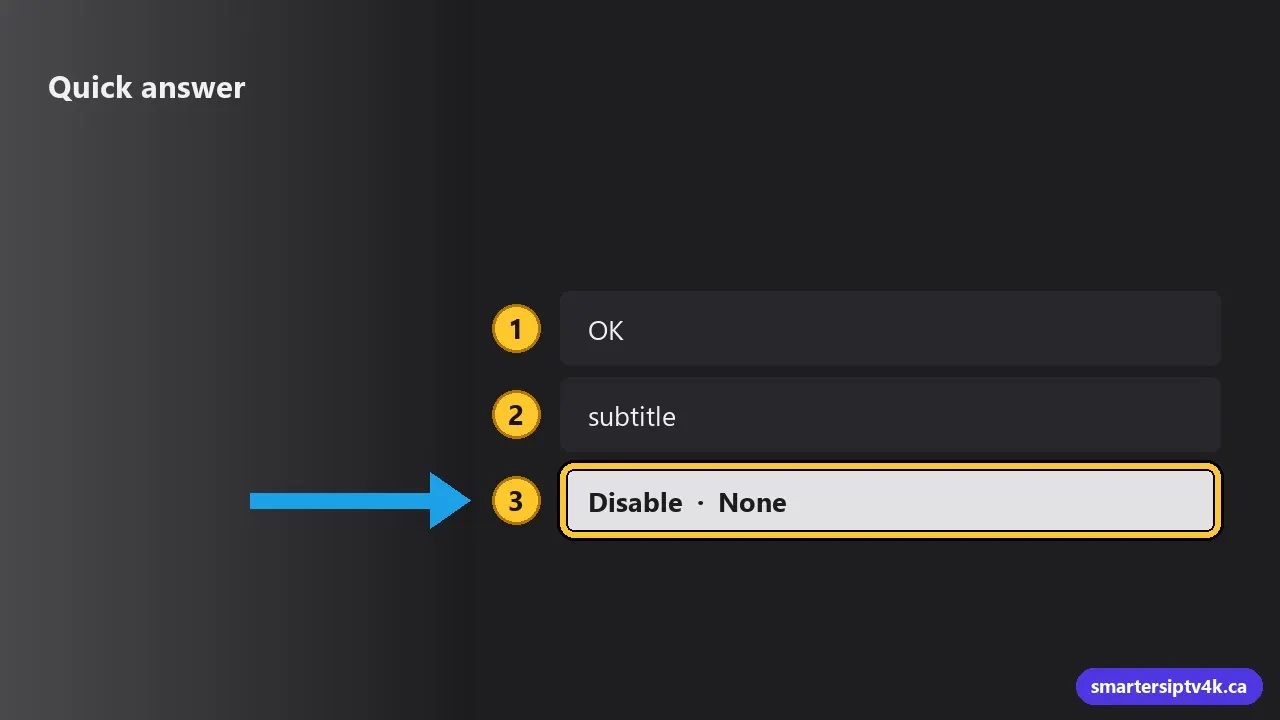
- While the video is playing, press OK or tap the screen to show the player controls.
- Select the subtitle icon (a speech bubble or “CC”).
- Choose Disable or None.
Step by step on Firestick and Android TV
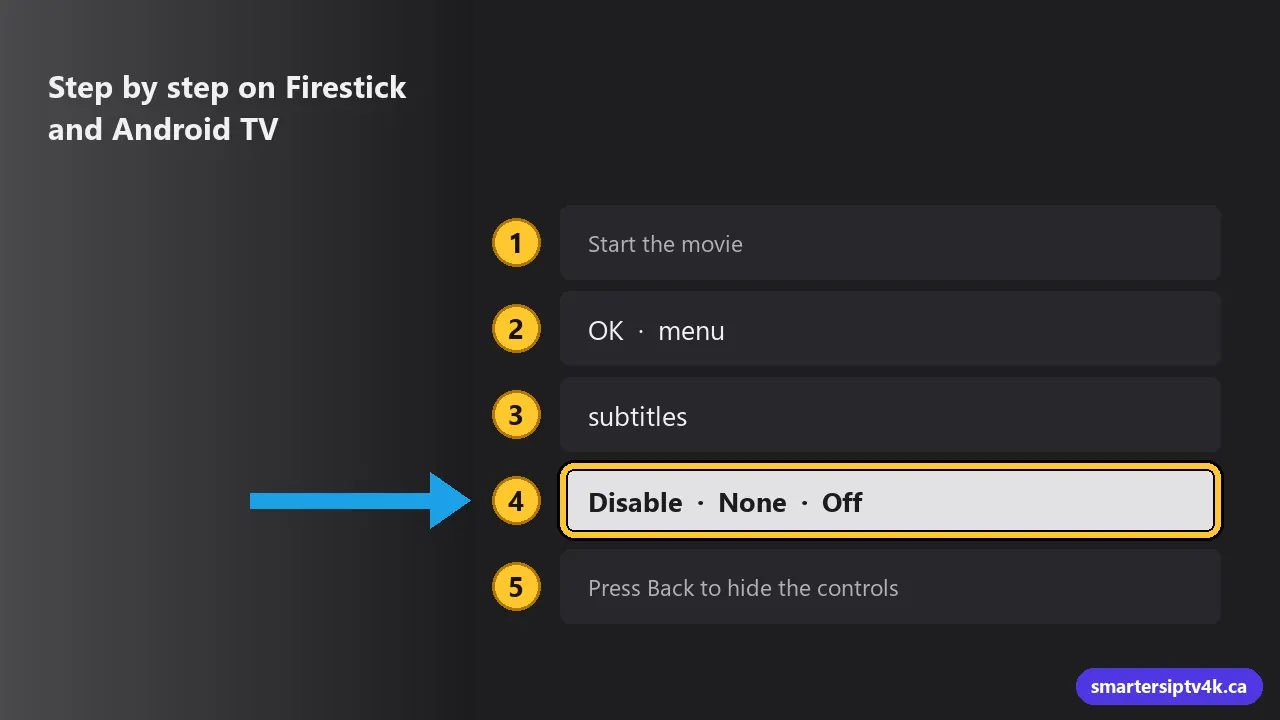
- Start the movie, episode or channel.
- Press OK (the centre button) on the remote to show the controls. On some versions, press the menu button (three lines) instead.
- Move to the subtitles icon, usually at the top right or bottom of the player.
- Select Disable (or None / Off).
- Press Back to hide the controls.
Setup guides for these devices: Firestick and Android TV.
On phones and tablets
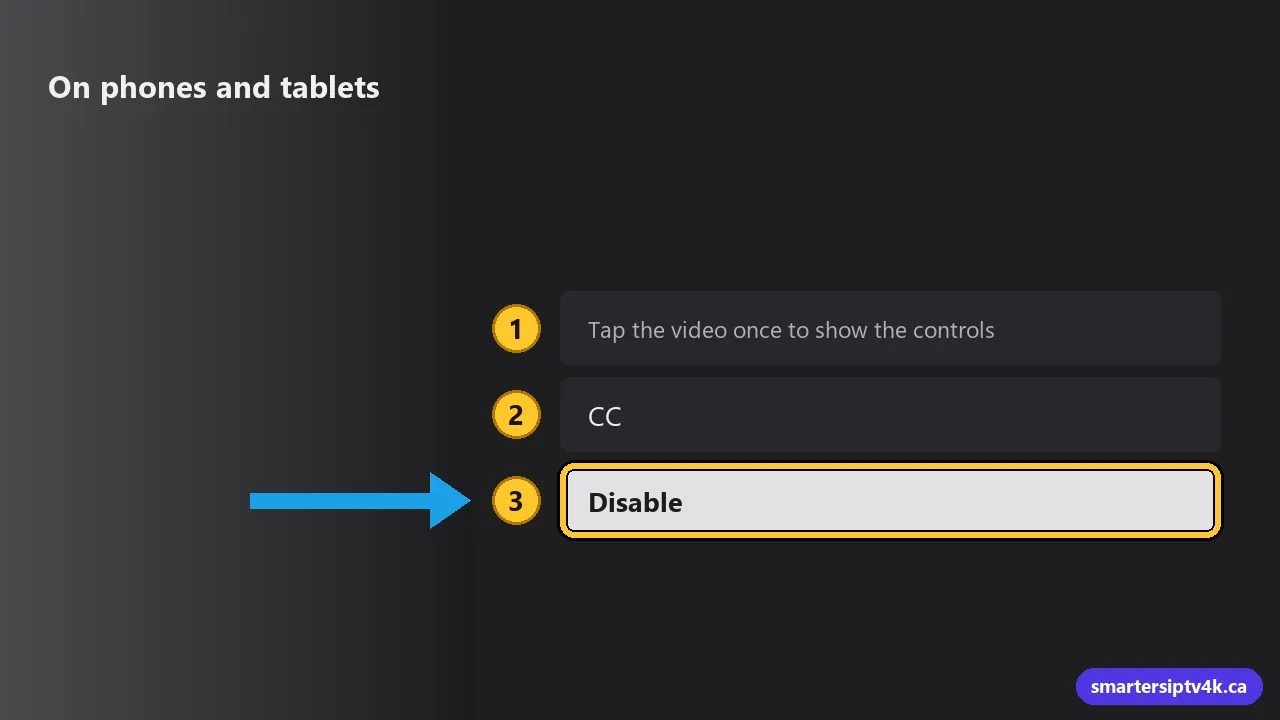
- Tap the video once to show the controls.
- Tap the CC or speech bubble icon.
- Choose Disable, or pick another language.
For iPhone and iPad: IPTV on iPhone.
Change the subtitle language instead
Many movies and series include several subtitle tracks, such as English and French. Open the same subtitle menu and choose the language you want. Handy for Quebec households, or for learning a language.
You can also change the audio track in the same way: look for the audio (speaker) icon in the player to switch between languages when a movie offers more than one.
Subtitles still showing? Check these
1. The subtitles are burned into the video
Some movies have subtitles that are part of the image itself (“hardcoded”). No player can turn those off. Look for another version of the same title in the library, often marked with a different language tag or quality.
2. The device’s own captions are on
Your device may be adding captions on top of every app:
- Firestick: Settings > Accessibility > Captions, turn off.
- Android TV / Google TV: Settings > Accessibility > Captions, turn off.
- Samsung TV: Settings > General > Accessibility > Caption Settings.
- LG TV: Settings > Accessibility > Subtitles.
- Apple TV / iPhone: Settings > Accessibility > Subtitles and Captioning.
3. Live TV captions from the broadcaster
Some live channels carry closed captions from the broadcaster. Turn them off in the player’s subtitle menu, and check your TV’s caption setting above.
4. The player ignores your choice
Switch the player engine in IPTV Smarters: Settings > Player Selection. Some players handle subtitle tracks better than others. Then try the subtitle menu again.
5. An old app version
Update IPTV Smarters. Subtitle bugs are often fixed in updates. If the problem continues, clear the app cache: how to clear the IPTV cache.
Want subtitles on, but bigger?
If you like subtitles but they are too small, change the size and style in the device’s caption settings listed above. Many players also have a subtitle size option in their settings.
Subtitles on IPTV Smarters: frequently asked questions
Why do subtitles turn back on for each movie?
Some files set a subtitle track as default. The player follows the file each time. Turn it off per title, or check whether your player has a global “subtitles off by default” setting.
Is this the same in TiviMate?
Very similar: press OK while watching, open the subtitle or track options, and choose off. See the TiviMate guide.
Can I add my own subtitles?
Some players allow loading subtitle files for movies, but for most viewers the built-in tracks are enough.
Need help?
Send us the title and a photo of the screen, and we will help you fix it. More app tips in our IPTV Smarters Pro guide.