

Roku is one of the most popular streaming platforms in Canada, built into many TCL, Hisense and other TVs, and sold as sticks and boxes. But it has one important limit for IPTV: the Roku Channel Store does not offer the IPTV player apps our service uses, such as IPTV Smarters or TiviMate, and Roku does not let you install apps from outside its store. This guide explains what works for IPTV on Roku and what does not. For more background, see Roku Support.
That does not mean you cannot watch. This guide explains the three ways that work, which one to choose, and how to set each one up.
Why Roku does not support IPTV players
Roku runs its own closed operating system. Every app (“channel”, in Roku’s words) must be approved for the Roku store, and there is no equivalent of the “install unknown apps” setting that Firestick and Android TV offer. Players that accept any IPTV login are generally not available there. Occasionally an app appears in the store and later disappears, so we do not recommend relying on one.
Option 1: Plug in a streaming stick (the best experience)
Every Roku TV has HDMI ports. Plugging in a Fire TV Stick or Google TV device gives you a full IPTV experience with a proper app, remote control and TV guide, and your phone stays free.
- Plug the stick into a free HDMI port on the Roku TV and into power.
- On the Roku home screen, select the HDMI input tile for that port (you can rename it “IPTV”).
- Set up the stick and install IPTV Smarters or TiviMate. Follow the Firestick guide or the Google TV guide.
Tip: turn on Settings > System > Control other devices (CEC) on your Roku TV so the TV remote can control the stick and the TV switches input automatically.
This is the option we recommend for daily watching. A Fire TV Stick 4K costs less than most people expect; see choosing a good IPTV box.
Option 2: Screen mirroring from Android or Windows
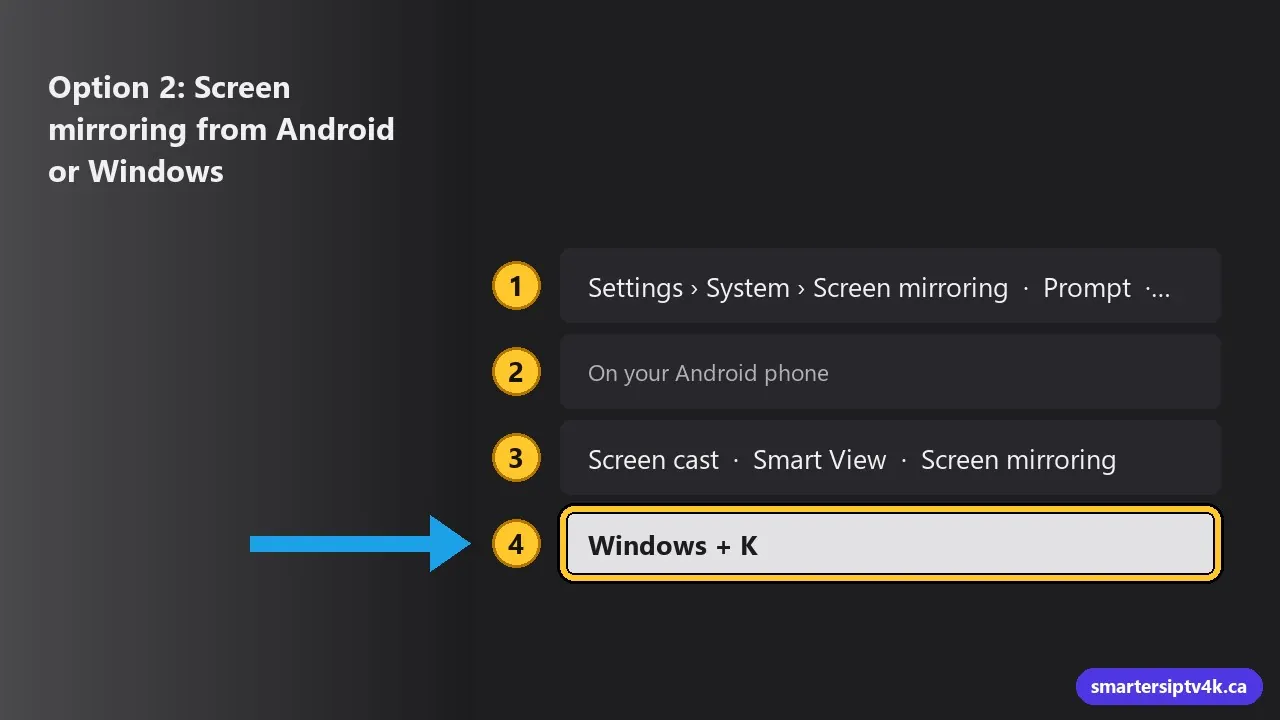
Roku supports screen mirroring from many Android phones and Windows computers. Whatever plays on the phone or PC appears on the TV.
- On the Roku, open Settings > System > Screen mirroring and set the mode to Prompt or Always allow.
- On your Android phone, install IPTV Smarters Pro and log in. See the login guide.
- Open the quick settings panel and choose Screen cast, Smart View or Screen mirroring (the name depends on the phone brand), then select your Roku.
- On Windows, press Windows + K and choose your Roku, then play a channel in your IPTV app. See IPTV on a Windows PC.
Limits: your phone or PC must stay on and nearby, the picture depends on your Wi-Fi, and notifications may appear on the TV. Good for occasional viewing, not ideal for a full evening of sports.
Option 3: AirPlay from iPhone or iPad
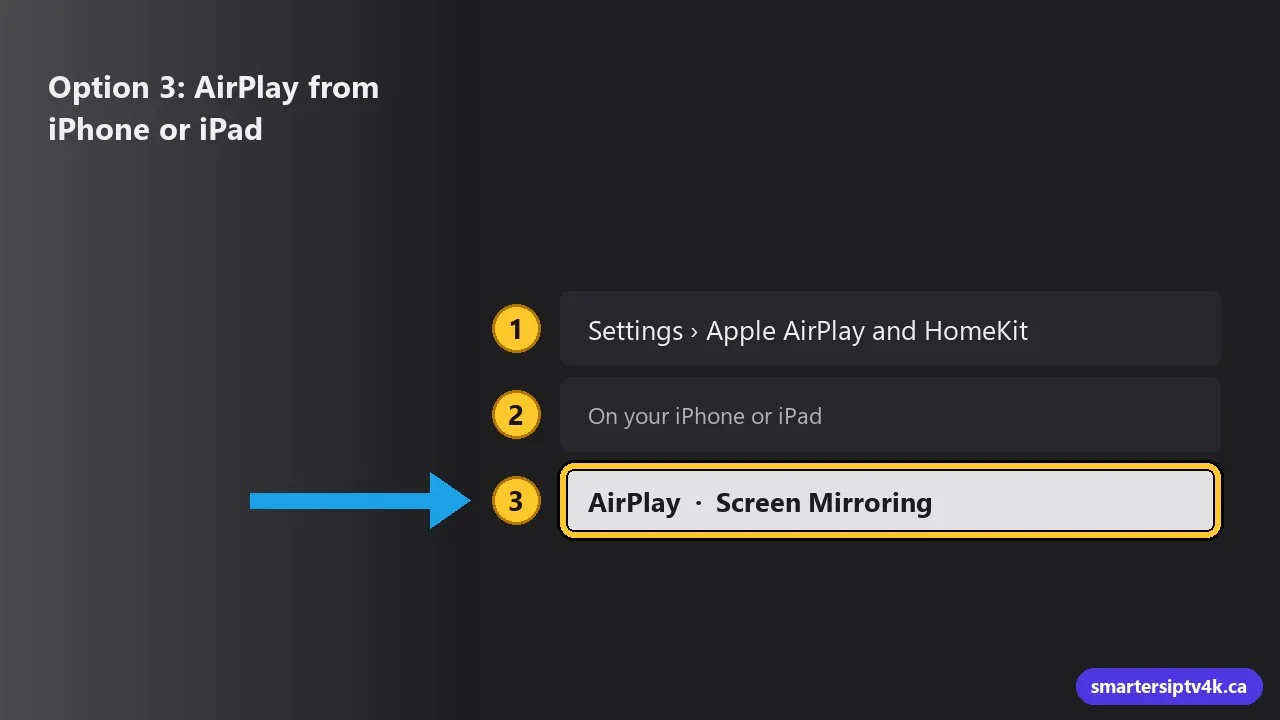
Many recent Roku devices and Roku TVs support Apple AirPlay.
- On the Roku, check Settings > Apple AirPlay and HomeKit and make sure AirPlay is on.
- On your iPhone or iPad, install an IPTV player such as Smarters Player Lite and log in. See IPTV on iPhone.
- Play a channel and tap the AirPlay icon in the player, or use Screen Mirroring in Control Center, and choose your Roku.
If the AirPlay settings are missing, your Roku model may not support it. Check for a system update in Settings > System > System update.
Which option is right for you?
| Streaming stick | Android / Windows mirroring | AirPlay | |
|---|---|---|---|
| Picture stability | Best | Depends on Wi-Fi | Good |
| Phone needed while watching | No | Yes | Yes (casting) |
| TV guide on the big screen | Yes | Yes, via phone | Yes, via phone |
| Extra cost | A stick | None | None |
| Best for | Daily viewing, sports | Occasional use | iPhone households |
Tips for mirroring without problems
- Keep the phone and Roku on the same Wi-Fi network, preferably 5 GHz.
- Plug in your phone: mirroring uses a lot of battery.
- Turn on Do Not Disturb so messages do not pop up on the TV.
- If the picture stutters, choose the HD version of the channel.
IPTV on Roku: frequently asked questions
Can I sideload IPTV Smarters on Roku?
No. Roku’s developer mode is only for testing apps by developers and is not a practical way to install IPTV players.
Will a Roku app for IPTV appear later?
Some IPTV apps come and go in the Roku store. If one appears, we will update this guide, but a streaming stick remains the most reliable option.
Does mirroring count as one screen?
Yes. It is one stream, playing on the phone and shown on the TV. See multiple devices.
Need help choosing?
Send us your Roku model and phone type, and we will recommend the simplest option for you. Want to test first? Start a free trial on your phone and try mirroring tonight.