

MyIPTV Player is a free IPTV app from the Microsoft Store that runs on Windows 10, Windows 11 and Xbox consoles. It plays M3U playlists, shows a TV guide, and lets you build favourites, making it one of the easiest ways to watch IPTV on a Windows computer or an Xbox connected to your TV. Here is how to set up MyIPTV Player on a Windows PC. For more background, see the Microsoft Store.
This guide walks you through installing it, adding your playlist and guide, and fixing the common issues.
What you need
- A Windows 10 or 11 computer, or an Xbox One or Xbox Series X|S.
- Your M3U link and EPG (guide) link. We send both with your login when your free trial or plan starts. Not sure what they are? See what M3U is.
Step 1: Install MyIPTV Player
- Windows: open the Microsoft Store, search for MyIPTV Player and select Get.
- Xbox: open the Store on the console, search for MyIPTV Player and install it.
Step 2: Add your playlist
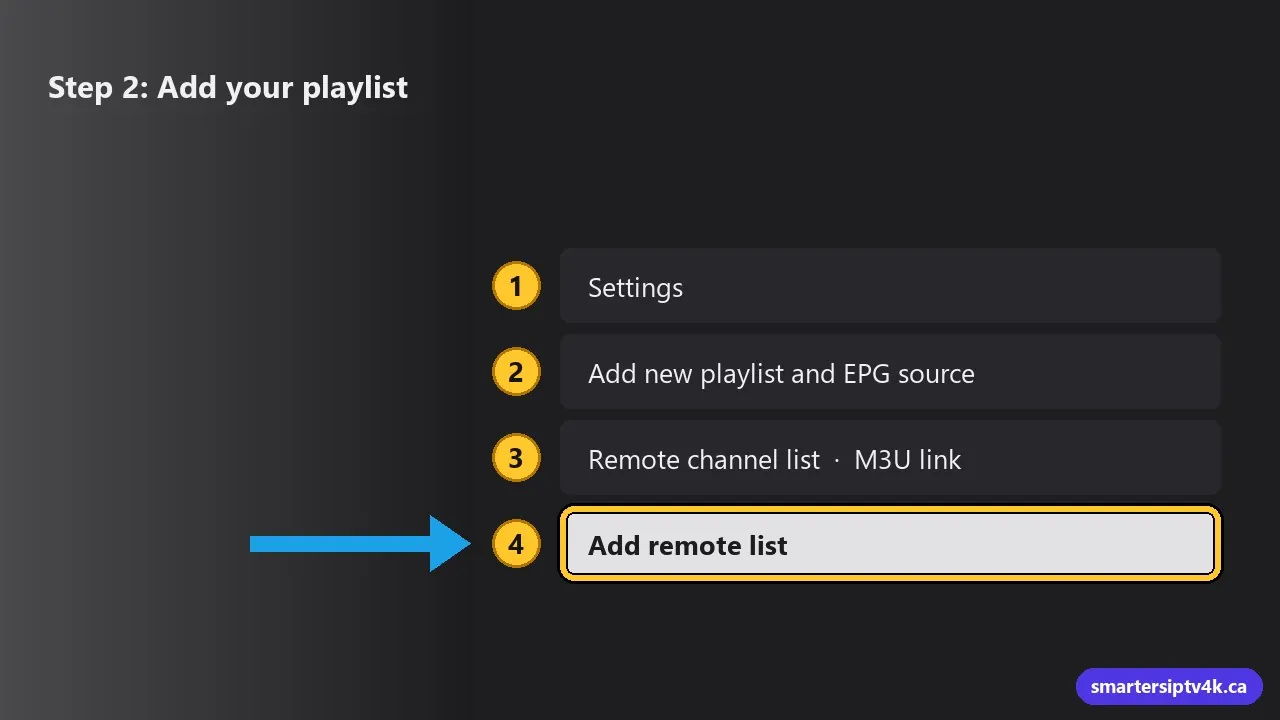
- Open MyIPTV Player and go to Settings.
- Choose Add new playlist and EPG source.
- Under Remote channel list, enter a name (for example “Smarters IPTV”) and paste your M3U link.
- Select Add remote list.
Step 3: Add the TV guide
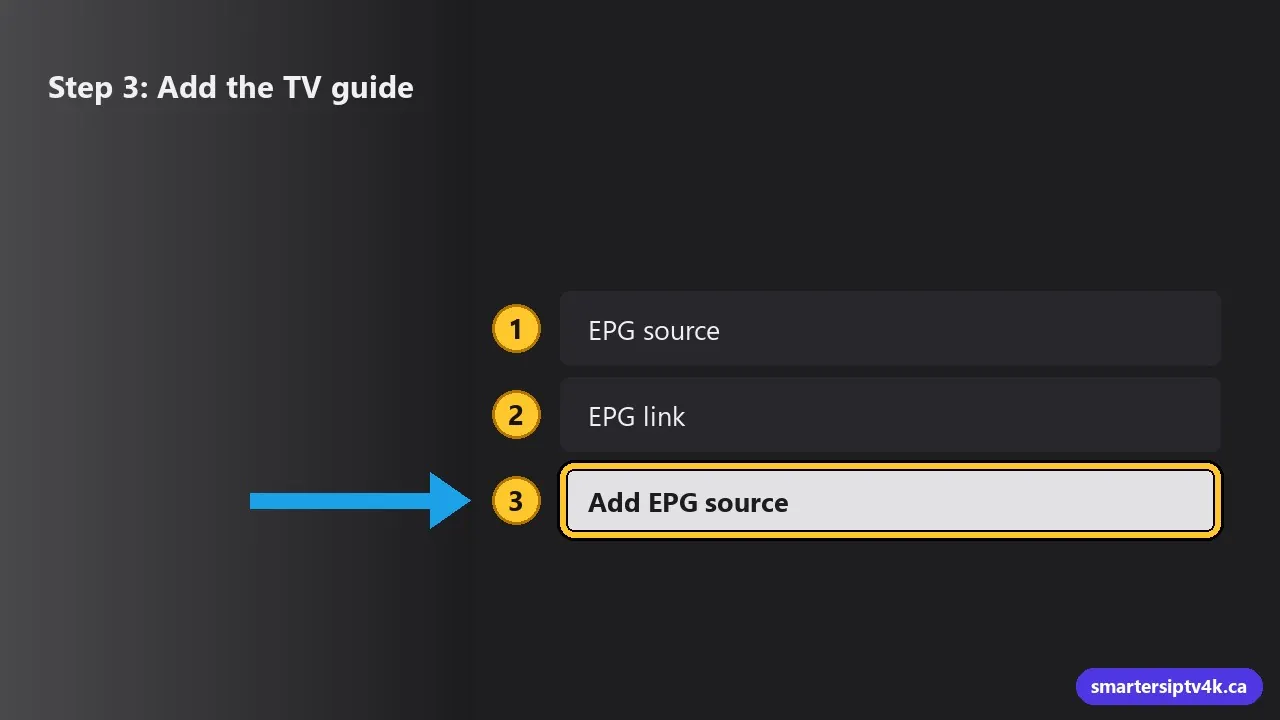
- On the same screen, find the EPG source section.
- Enter a name and paste the EPG link we sent you.
- Select Add EPG source.
Step 4: Select the playlist
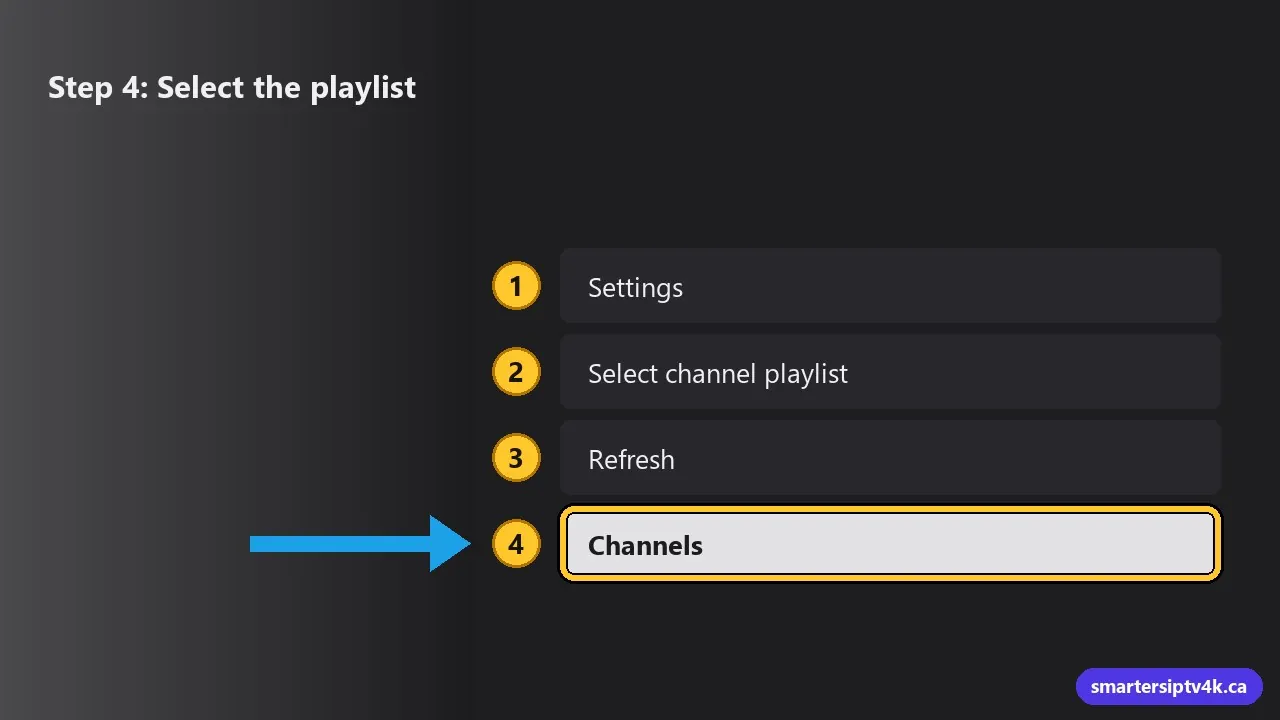
- Go back to Settings.
- In Select channel playlist, choose the playlist you just added.
- Choose your EPG source in the guide setting, then select Refresh.
- Open Channels from the menu. Your channel list appears, grouped by category.
The first load of a large playlist can take a minute or two.
Using MyIPTV Player
- Channels: browse by group, select a channel to play.
- EPG: the program guide for all channels.
- Favourites: right-click (Windows) or press the menu button (Xbox) on a channel to add it.
- Full screen: double-click the video on Windows.
Tips for Xbox
- Use a wired connection to the console if you can; Xbox consoles have Ethernet ports.
- Pause game downloads while watching live TV, as they share your bandwidth.
- More options for consoles in IPTV on PS5 and Xbox.
Recommended settings
- Use media player based on VLC: if available in the settings, this option often plays more channels smoothly. Try it if a channel does not start.
- Refresh on start: keeps the playlist and guide current.
- Time offset: adjust if guide times are shifted for your time zone. See EPG guide.
Common problems and fixes
Playlist does not load
Check that the whole M3U link was pasted, without spaces, and that your plan is active. Remove the playlist and add it again.
Channels show but will not play
Toggle the VLC-based player option in the settings, then try again. If a channel still fails, tell us which one.
Guide is empty
Make sure the EPG source is added and selected, then refresh. Check that the Windows date, time and time zone are correct.
Buffering
Use Ethernet, close heavy programs, and see buffering fixes.
Other options on Windows
Prefer an app with a login instead of a playlist? IPTV Smarters has a Windows version, and VLC can open your M3U link directly. See how to watch IPTV on a Windows PC.
MyIPTV Player: frequently asked questions
Is MyIPTV Player free?
Yes. It may offer optional paid features or show ads depending on the version.
Does MyIPTV Player support Xtream Codes logins?
It is built around M3U playlists. Use the M3U link we send you.
Need help?
Send us a screenshot of your MyIPTV settings page and we will check it. New here? Start a free trial.