


Game consoles are already connected to the big TV and the internet, so it makes sense to wonder whether they can play IPTV too. The answer differs by console: Xbox can, with free apps from the Microsoft Store; PlayStation cannot run IPTV player apps, but there are easy workarounds. This guide covers both. Here is what works for IPTV on PS5 and Xbox, and the easiest alternatives. For more background, see Xbox Support.
Quick answer
- Xbox One and Xbox Series X|S: install MyIPTV Player or VLC from the Microsoft Store and load your M3U playlist.
- PS5 and PS4: the PlayStation Store does not offer IPTV players. Use a streaming stick on the same TV, or another device.
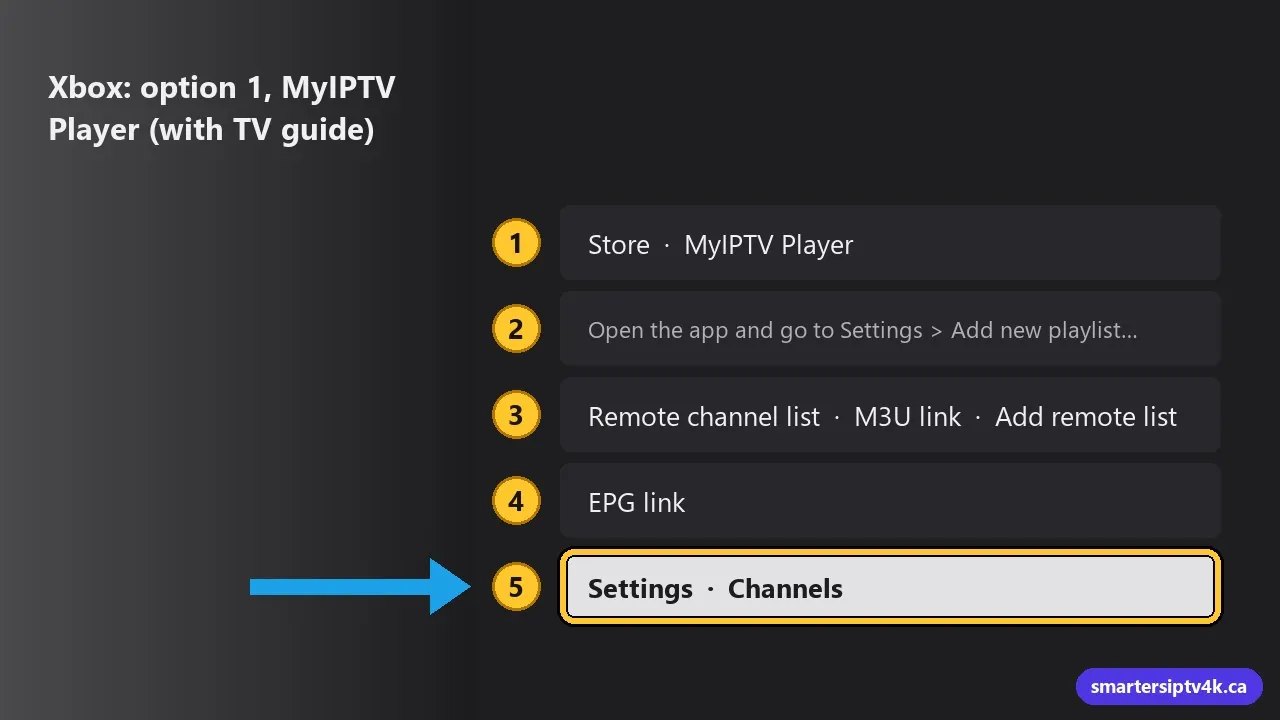
Xbox: option 1, MyIPTV Player (with TV guide)
MyIPTV Player is a free app with a channel list, favourites and a TV guide.
- On your Xbox, open the Store, search for MyIPTV Player and install it.
- Open the app and go to Settings > Add new playlist and EPG source.
- Under Remote channel list, enter a name and your M3U link, then Add remote list.
- Add the EPG link in the EPG source section.
- Back in Settings, select the playlist and refresh, then open Channels.
Typing long links with a controller is slow. Plug a USB keyboard into the Xbox, or use the Xbox app on your phone to type. Full walkthrough: MyIPTV Player guide.
Xbox: option 2, VLC
VLC is available for Xbox in the Microsoft Store. It can open a network stream from your M3U link, with a simple channel list and no guide. Good for quick viewing; MyIPTV is better for daily use.
Tips for IPTV on Xbox
- Use Ethernet: Xbox consoles have a network port; a cable gives the smoothest live TV.
- Pause game downloads while watching, since they take bandwidth. See internet speed for IPTV.
- Power settings: in Settings > General > Power options, the energy-saving mode makes the console start slower but uses less power; choose what suits you.
- Controller shortcuts: use the bumpers and triggers to move through long lists faster.
PlayStation 5 and PS4: why IPTV players are not available
Sony’s store only offers approved apps, and general IPTV players that accept any playlist are not among them. The PS5 also has no user-accessible web browser for playing streams, and it does not accept casting from phones. That leaves these options:
Option 1: A streaming stick on the same TV (recommended)
Plug a Fire TV Stick or Google TV device into another HDMI port on the TV. Switch input when you want to watch TV. It gives you a proper IPTV app, TV guide and remote. See the Firestick guide or Google TV guide.
Option 2: Use the TV’s own apps
If the TV is a recent Samsung or LG, it can run IPTV apps directly: Samsung, LG.
Option 3: Mirror from a phone to the TV
If your TV supports Chromecast, AirPlay or screen mirroring, cast from the IPTV app on your phone. Fine for occasional viewing. See IPTV on iPhone.
Console vs streaming stick for IPTV
| Xbox | PS5 | Streaming stick | |
|---|---|---|---|
| IPTV apps | MyIPTV, VLC | None | IPTV Smarters, TiviMate and more |
| TV guide | Yes (MyIPTV) | No | Yes |
| Power use | High | High | Very low |
| Remote | Controller or media remote | Not applicable | TV-style remote |
For daily TV watching, a stick is quieter, uses much less power and has better apps. The Xbox is a great bonus screen, for example in a games room.
IPTV on PS5: frequently asked questions
Does the Xbox count as one of my screens?
Yes, while it is playing. See multiple devices.
Can I use IPTV Smarters on Xbox?
Not directly on the console. Use MyIPTV Player or VLC, or a streaming stick with IPTV Smarters.
Will a PlayStation app appear in the future?
If an IPTV player becomes available in the PlayStation Store, we will update this guide.
Need help?
Tell us your console and TV model, and we will suggest the simplest setup. Need your M3U link? See where to get your IPTV URL, or start a free trial.