


If you have never used IPTV, the words can feel technical: apps, logins, server URLs, EPG. The reality is much simpler. If you can install an app on your phone, you can set up IPTV. Most people are watching live TV within 15 minutes of starting. If you have never used it before, this is the simplest way to set up IPTV. For more background, see Speedtest.
This guide assumes no technical knowledge. It walks you through the four things you need, the setup in plain language, and what to do in your first week.
IPTV in one sentence
IPTV is TV that comes through your internet connection instead of a cable box or satellite dish, and you watch it in an app on a TV, streaming stick, phone or computer. For more background, read what IPTV is and how it works.
The four things you need
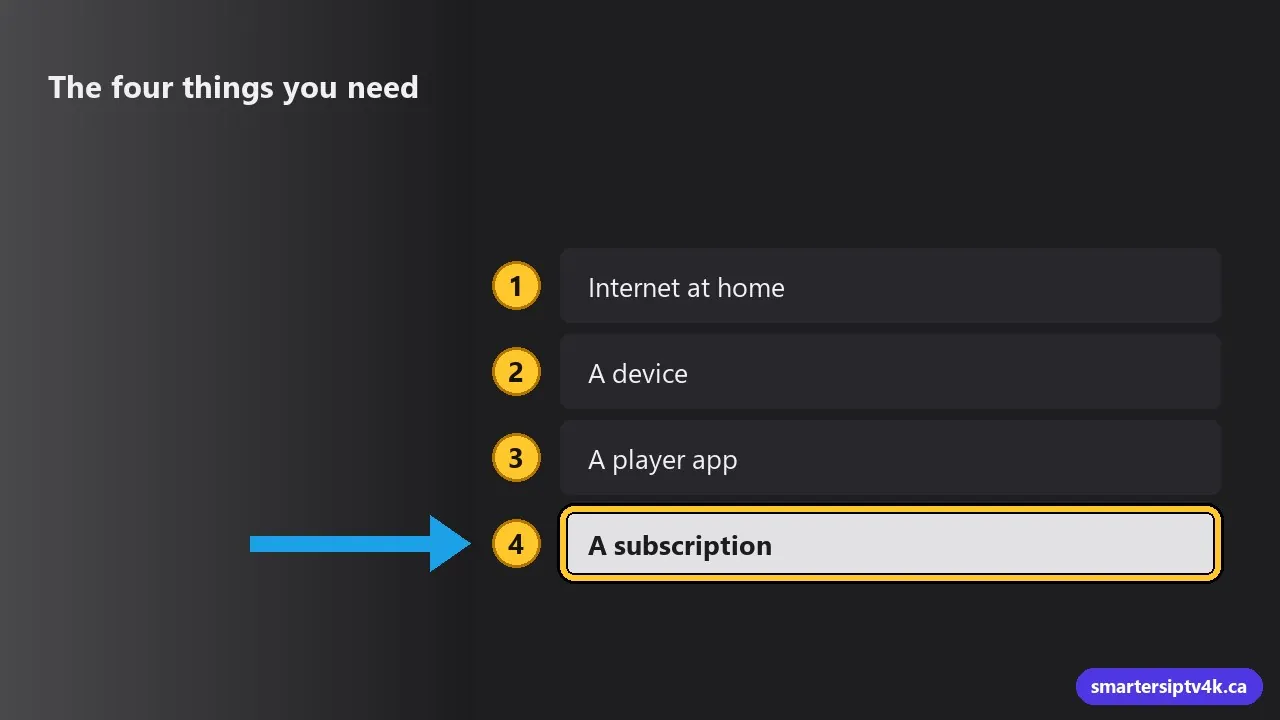
- Internet at home. About 10 Mbps for HD and 25 Mbps for 4K on the TV. Most Canadian home internet plans are enough. See what speed you need.
- A device. A Smart TV (Samsung, LG, Sony, TCL), a streaming stick (Amazon Firestick, Google TV), an Apple TV, a phone, a tablet or a computer. You probably already own one.
- A player app. A free app such as IPTV Smarters Pro. Think of it like a DVD player: it plays what you put in it.
- A subscription. Your login from an IPTV provider: a username, password and server address. This is what brings the channels.
Which device should a beginner use?
If you are starting from scratch, the Amazon Fire TV Stick 4K is the easiest choice in Canada. It is inexpensive, sold in most electronics stores, plugs into any TV with an HDMI port, and has the most setup help available. If you already have a Samsung or LG Smart TV from the last few years, try the built-in app store first. More options in our guide to the best IPTV box in Canada.
Setup in five steps
Step 1: Get a subscription or free trial
Request a free trial or choose a plan. We send your login details by email or WhatsApp. Keep that message; you will copy from it in step 4.
Step 2: Connect your device
Plug the streaming stick into the TV and power, choose the right input with your TV remote, and follow the on-screen steps to connect to Wi-Fi. For a Smart TV, just make sure it is connected to the internet.
Step 3: Install the player app
Follow the guide for your device. Each one shows every screen:
Step 4: Log in
Open the app, choose Login with Xtream Codes API, and type the three details from our message: username, password and server URL. Type them exactly, including capital letters. Then press Add User. Detailed help: IPTV Smarters login guide.
Step 5: Start watching
Choose Live TV, pick a category such as Canada or Sports, and select a channel. That is it.
Your first week: small habits that help
- Load the TV guide: press Install EPG once so you can see what is on. See what EPG is.
- Make a favourites list: add the 10 to 20 channels you actually watch, so you do not scroll through thousands.
- Try movies and series: they are in their own sections on the home screen. Tips in finding movies and series fast.
- Watch a live game in the evening: it is the best test of your setup.
- Restart the device once a week to keep it running smoothly.
Words you might see
- Server URL: the address of the service, like a website address. It comes with your login.
- M3U: another way to log in, using a single link. See what M3U is.
- EPG: the TV guide.
- Screens or connections: how many devices can watch at the same time. See multiple devices.
- Buffering: when the picture pauses to load. Usually a Wi-Fi issue; see buffering fixes.
- Catch-up: watching a program that already aired, from the guide.
Common beginner mistakes
- Typing the login with an extra space or wrong capital letter. Copy and paste when you can.
- Forgetting
http://at the start of the server URL. - Using the 2.4 GHz Wi-Fi far from the router. Use 5 GHz or a cable if the picture freezes.
- Downloading apps from random websites. Use the official app store or the link we send you.
- Leaving streams running on other devices, which uses up your screens.
Set Up IPTV: frequently asked questions
Do I need a computer to set up IPTV?
No. Everything is done on the TV or streaming stick with its remote. A phone helps for reading your login message.
Is it hard for older family members to use?
Once it is set up, it is as simple as changing channels: open the app, choose Live TV, pick a channel. Many of our customers set it up for their parents and add a favourites list for them.
What if I get stuck?
Message us. We help every customer set up for free, step by step, on any device.
Ready to start?
Request your free trial, pick your device guide above, and you could be watching tonight. Questions first? Contact us, or read how to get IPTV in Canada.