

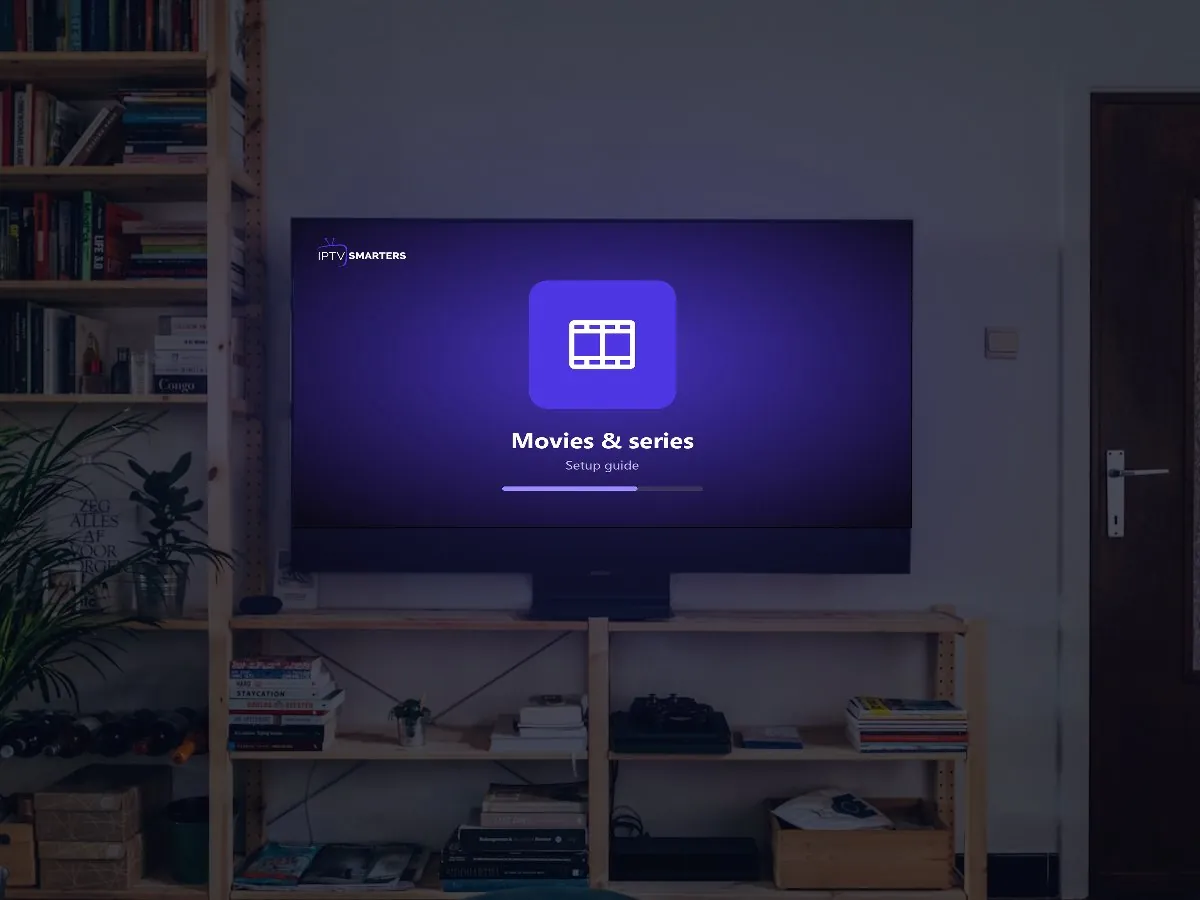
These tips help you find movies and series in your IPTV app in seconds. An IPTV subscription often comes with a large library of movies and series, and a large library can be hard to browse with a TV remote. The good news: your app has several shortcuts that make finding something to watch much faster. This guide covers search, categories, favourites, continue watching and a few tricks specific to IPTV Smarters, TiviMate and XCIPTV. For more background, see TiviMate on Google Play.
Where movies and series live in the app
- IPTV Smarters: the Movies and Series tiles on the dashboard.
- TiviMate: the Movies and Series sections in the left menu (depending on your version and playlist type).
- XCIPTV: Movies and Series on the home screen.
If these sections are empty, you may be logged in with an M3U link that lists movies as channels. Use the Xtream Codes login for an organized library: see M3U vs Xtream.
1. Use search (the fastest way)
- Open Movies or Series.
- Select the search icon (magnifying glass), usually at the top.
- Type a few letters of the title, not the whole name. “Dune” finds faster than “Dune Part Two”.
Tip: typing on a TV is slow. Use voice search if your remote supports it, or your phone as a keyboard (the Google TV app on Android, or the iPhone keyboard prompt on Apple TV).
2. Browse by category
Libraries are usually organized into groups such as Recently Added, Action, Comedy, Kids, Documentary, French or by year. Start with Recently Added to see what is new, or the French categories for Quebec-produced and dubbed titles.
3. Save favourites and a watch list
When you spot something for later, add it to Favourites: long-press OK on the title (or tap the heart on mobile). Your favourite movies and series appear in their own list, so you do not have to search again. More on managing lists: how to clear and organize favourites.
4. Continue watching
Most apps remember where you stopped. Look for Continue Watching, Recently Watched or a progress bar on the poster. In series, the app usually opens the next unwatched episode.
5. Read the details before you press play
Select a title to see its description, year, rating, duration and sometimes a trailer. For series, you can pick the season and episode from the detail page.
Playback tips
- Language and subtitles: during playback, use the audio and subtitle icons to switch language or turn subtitles off. See how to turn off subtitles.
- Quality: some titles are available in several versions (HD, 4K). Pick the one that suits your internet: internet speed for IPTV.
- Skip and rewind: use the arrow keys or the progress bar; hold to skip faster.
- Player problems: if a title does not start, change the player in the app settings and try again.
Keep the library up to date
New titles are added regularly. If you do not see recent additions:
- IPTV Smarters: use the refresh icon on the dashboard, or turn on automatic updates in Settings > Automation.
- TiviMate: update the playlist in Settings > Playlists.
- Clear the cache if posters or lists look outdated: how to clear the IPTV cache.
For families
Children can find their shows quickly in the Kids categories. To keep mature titles out of reach, lock those categories with a PIN: IPTV parental controls.
Movies and Series in Your IPTV App: frequently asked questions
Why can I not find a specific movie?
Try searching part of the title, or the original title if it is a foreign film. Libraries vary and change over time, so a specific title may not be available.
Can I download movies to watch offline?
Most IPTV players stream only and do not support downloads. See recording and catch-up for alternatives on live TV.
Do movies count as a screen?
Yes, while playing, just like live TV. See multiple devices.
Need help?
Movies section empty or not loading? Message us with your app and device and we will fix it with you. New here? Start a free trial.