

Sometimes you need to change the server or portal address on your IPTV device: you moved to a new plan, we sent you an updated server address, or you are switching provider. The process depends on the device and app. This guide covers MAG boxes, Formuler, and apps like IPTV Smarters and TiviMate on Android and Firestick. These steps show how to change the URL on an IPTV box in a few minutes. For more background, see the official Formuler website.
Change the URL on an IPTV box: quick answer
- MAG: Settings > System settings > Servers > Portals, replace Portal 1 URL, save and restart the portal.
- Formuler: in MyTVOnline, highlight the portal, press menu, choose Edit Portal, replace the URL and connect.
- IPTV Smarters and TiviMate: add a new user or playlist with the new server URL, then remove the old one.
Full steps for each device are below.
Before you start
- Have the new URL ready, exactly as we sent it, plus your username and password if your app uses them.
- For MAC-based devices (MAG, some Formuler setups), make sure we have activated your MAC address on the new portal.
- Write down your old settings, just in case.
MAG boxes (MAG 322, 424, 524 and similar)
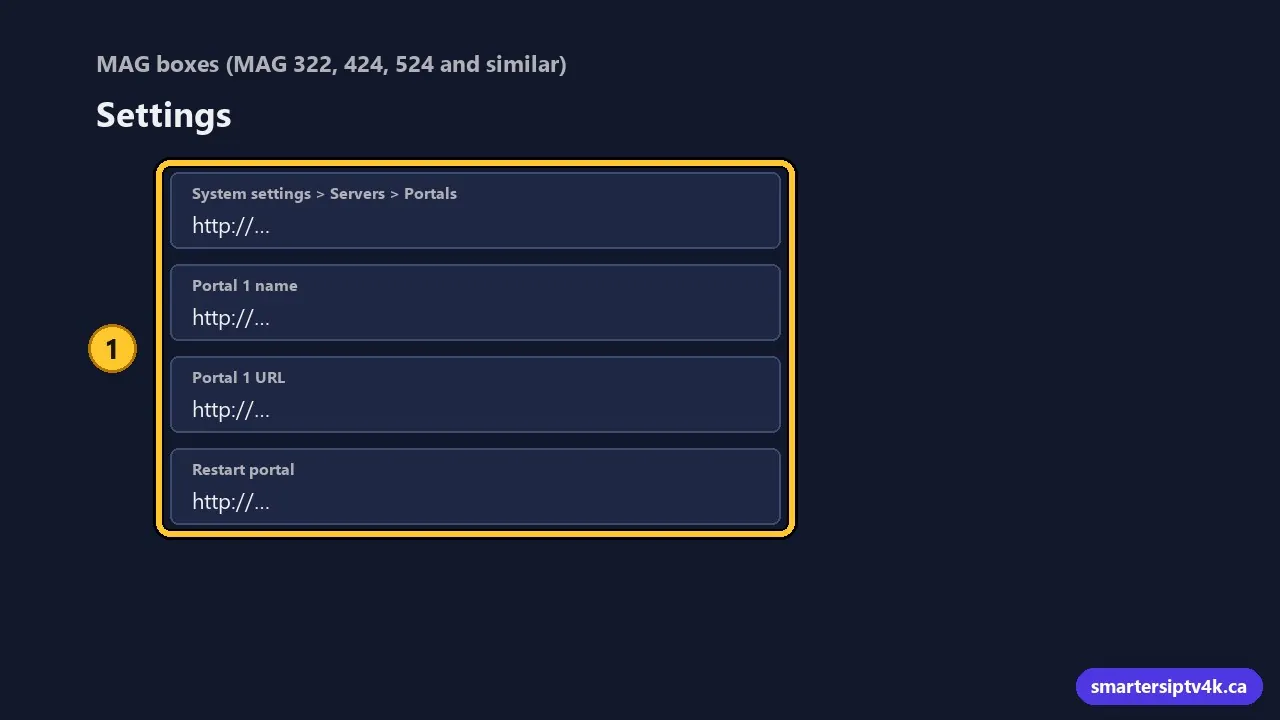
- Turn on the box. When the loading screen appears, or from the main menu, press Setup (or Set) on the remote to open Settings.
- Go to System settings > Servers > Portals.
- In Portal 1 name, enter a name (for example “Smarters IPTV”).
- In Portal 1 URL, delete the old address and enter the new portal URL. It often ends in
/c/. - Press OK to save, go back, and choose Restart portal (or restart the box).
If the portal does not load, check the URL character by character and confirm the MAC address on the sticker under the box matches the one we activated.
Formuler (MyTVOnline)
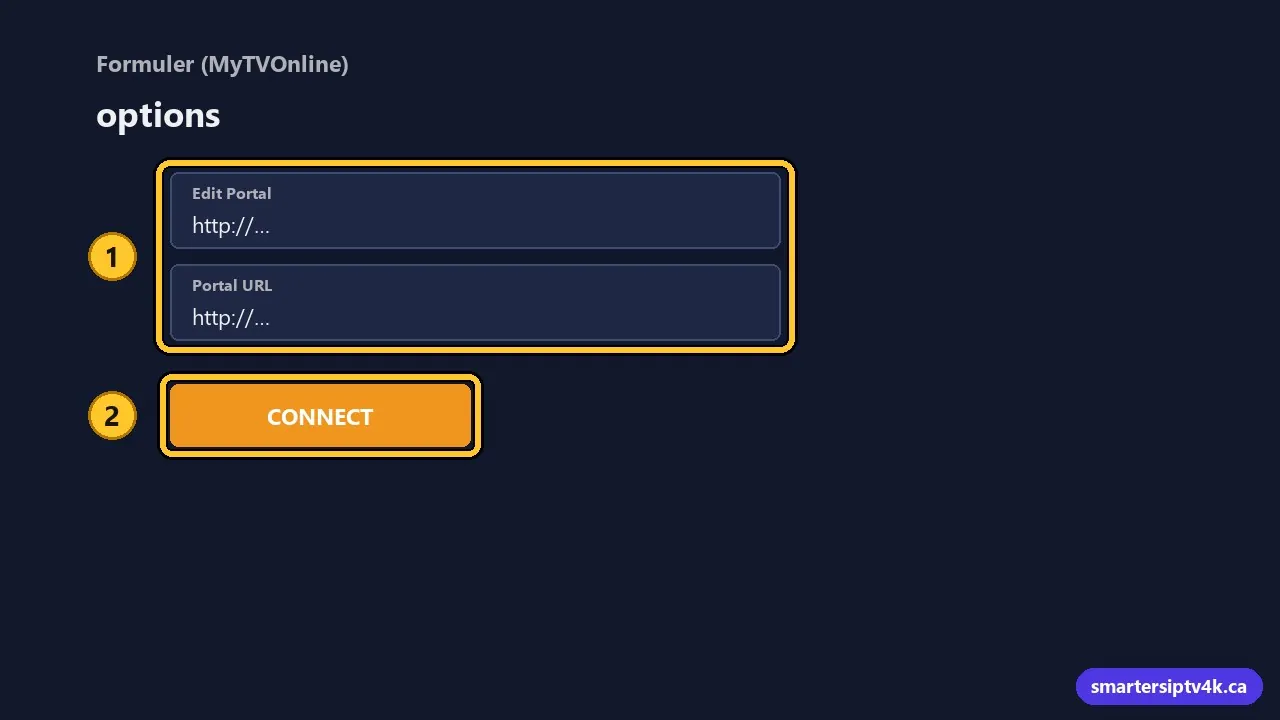
- Open MyTVOnline.
- On the portal screen, highlight your current portal and press the menu or options button.
- Choose Edit Portal.
- Replace the Portal URL with the new one. If you use a username and password, update those too.
- Save and select Connect.
Alternatively, add a new portal and delete the old one. Full setup guide: configure IPTV on a Formuler box.
IPTV Smarters (Firestick, Android, Smart TVs)
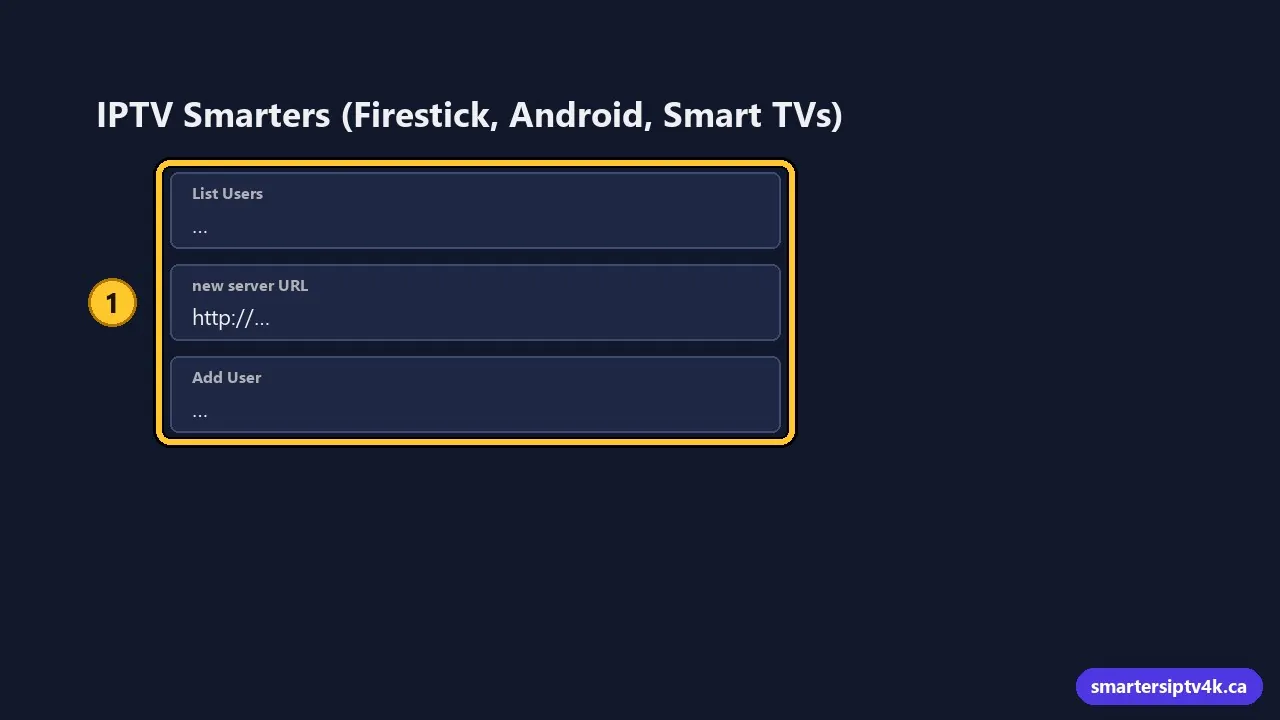
IPTV Smarters does not edit an existing user’s URL; you add a new user and remove the old one.
- From the dashboard, open List Users (the user icon, or log out to reach it).
- Choose Add New User > Login with Xtream Codes API.
- Enter a name, your username, password and the new server URL.
- Select Add User and open it.
- Back in the users list, delete the old user so you do not open it by mistake.
Your favourites are stored per user, so you will need to add them again. Login help: IPTV Smarters Pro login guide.
TiviMate
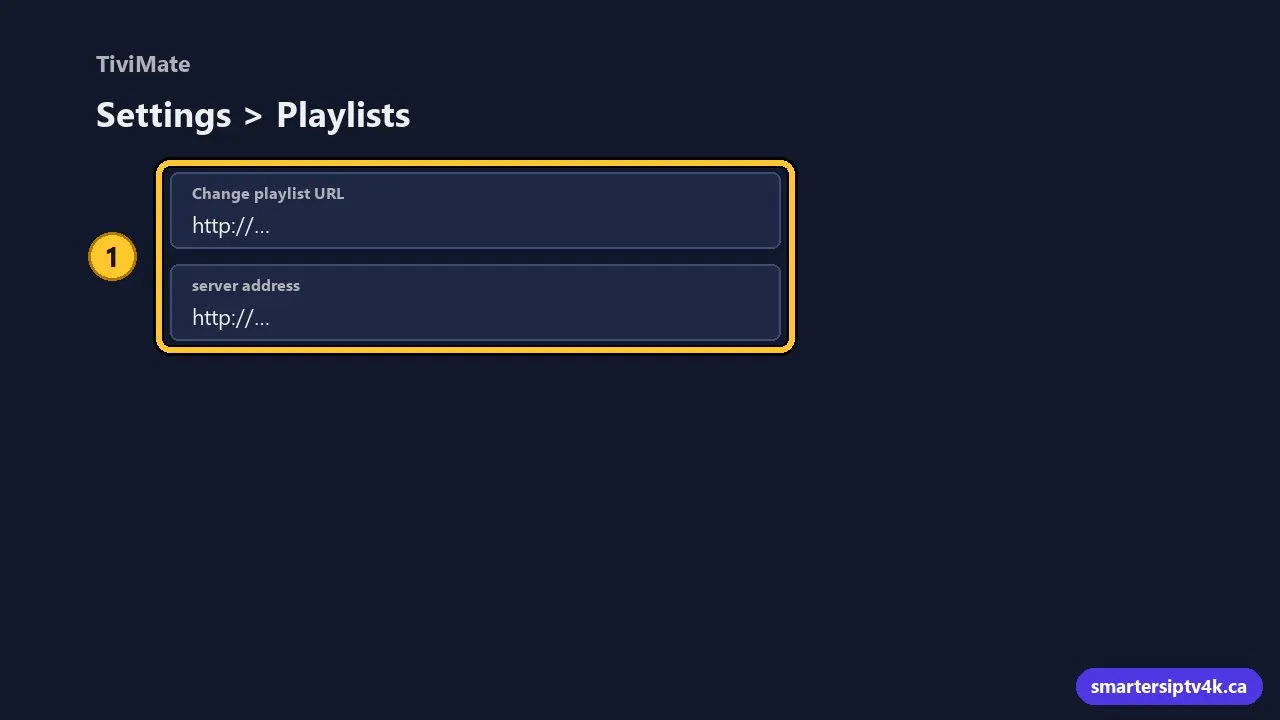
- Go to Settings > Playlists and select your playlist.
- Choose Change playlist URL (for M3U) or edit the server address (for Xtream Codes), depending on how you added it.
- Enter the new address and confirm. TiviMate reloads the channels.
Editing the playlist keeps your favourites and settings in most cases. See TiviMate setup.
XCIPTV and other apps
Log out from the app settings, then log in again with the new server URL. For playlist apps like VLC, Kodi, MyIPTV and GSE, edit or replace the M3U link in the playlist settings. Guides: XCIPTV, Kodi, MyIPTV, GSE.
Common problems after changing the URL
“Authentication failed” or “Invalid login”
The new server may use a new username or password. Check our latest message.
“Portal not found” or “Server unreachable”
Look for typos, a missing http:// or port, or an extra space. Restart the router and try again.
Old channels still showing
Clear the app cache or refresh the playlist. See how to clear the IPTV cache.
Guide is empty after the change
Update the EPG in the app. See EPG guide.
Change the URL on an IPTV Box: frequently asked questions
Why would the URL change?
Providers occasionally move to new servers for performance or maintenance. When we change it, we contact you with the new address and instructions.
Will I lose my subscription time?
No. Changing the URL on your device does not affect your plan’s remaining time.
Can I keep both the old and new URL?
You can save both, but only the current one will work. Remove the old one to avoid confusion.
Need help?
Send us a photo of your settings screen and your device model. We will guide you through the change for free. Lost your details? See where to get your IPTV URL.